> For the complete documentation index, see [llms.txt](https://help.dscout.com/llms.txt). Markdown versions of documentation pages are available by appending `.md` to page URLs; this page is available as [Markdown](https://help.dscout.com/interview-studies/manage-an-interview-study/first-time-participant-flow-in-a-mobile-interview-study.md).
# First time participant flow in a mobile interview study
When inviting your own participants to an interview study, you might be curious what the experience looks like from their perspective. This article outlines the process for participants accessing a Dscout mobile interview study for the first time.
{% hint style="info" %}
To learn more about the participant flow for joining a **desktop** interview study, see [First-time participant flow in a desktop interview study](/interview-studies/manage-an-interview-study/first-time-participant-flow-in-a-desktop-interview-study.md).
{% endhint %}
## Webpage signup
To recruit your own participants for an interview study, you’ll most often use a study webpage. With a study webpage, you can simply share a URL with the people you want to invite that allows them to sign up.
When participants visit your study webpage, it’ll look something like this:
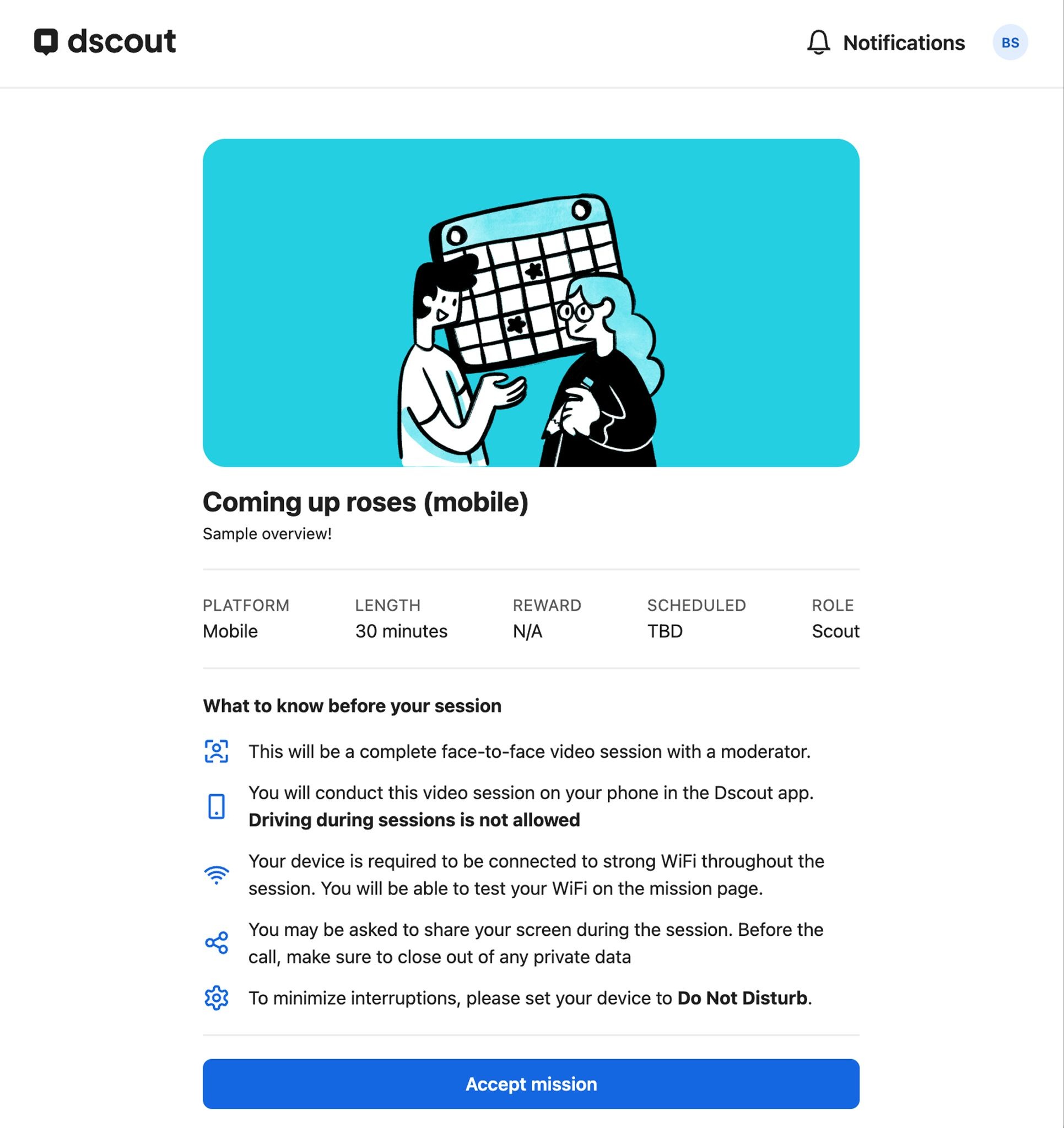
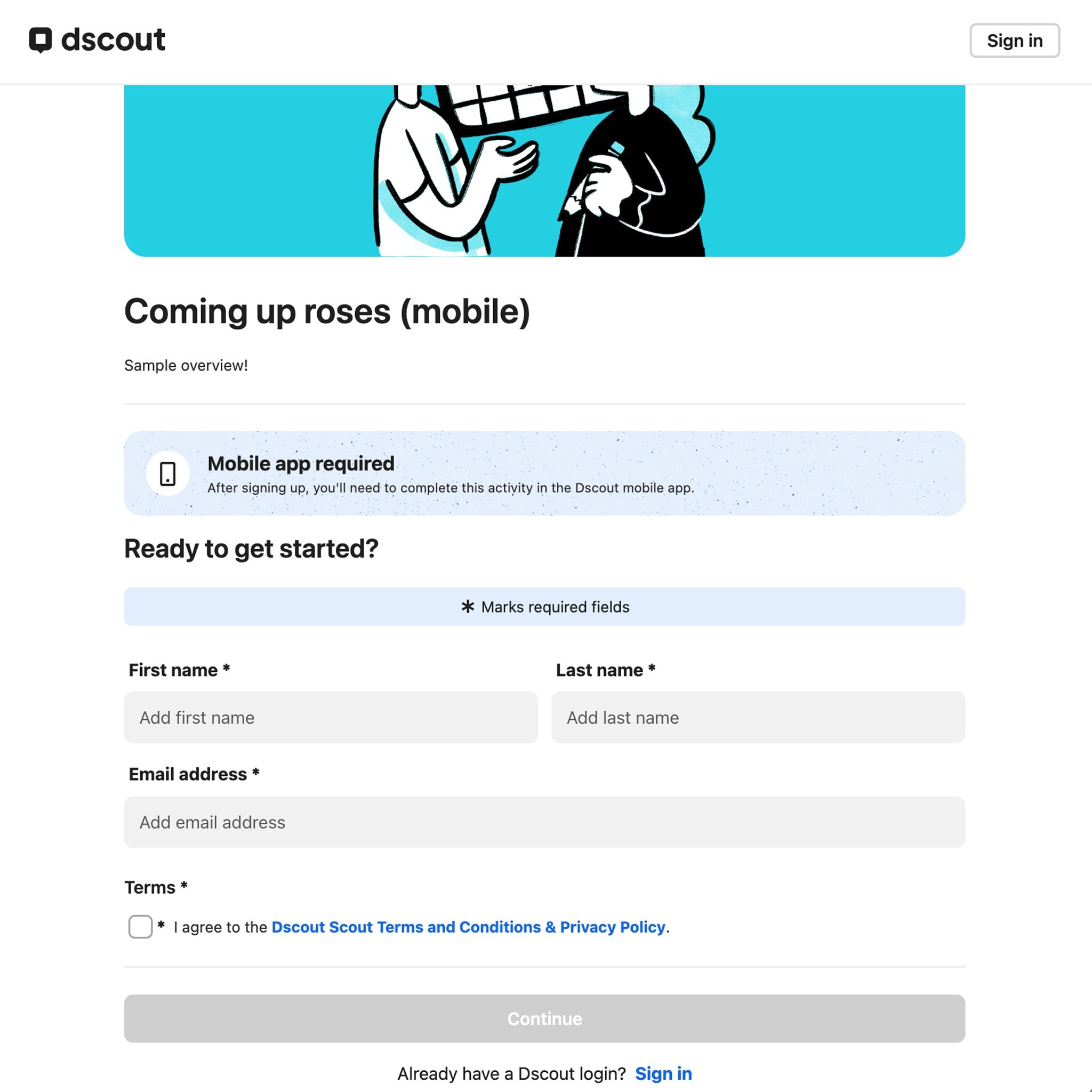 When participants enter the requested information and agree to [Dscout’s Terms and Conditions](https://dscout.com/legal/scout-terms?_gl=1*27qbfg*_gcl_au*MTkyMjk2ODA1LjE3NzI4MTg3NDcuMjY2MTY5MjQ4LjE3NzI4MjMwMTcuMTc3MjgyMzAzMA..*_ga*MTc5NTgzNDQyMS4xNzcyODE4NzQ3*_ga_NKGLHGWRSN*czE3NzMxODcyNzckbzUkZzEkdDE3NzMxODc0NzMkajYwJGwwJGgw&_ga=2.37474528.1773296808.1773187278-1795834421.1772818747), they’ll land on a page like this where they’ll need to **Accept mission**:
 ## Time slot selection
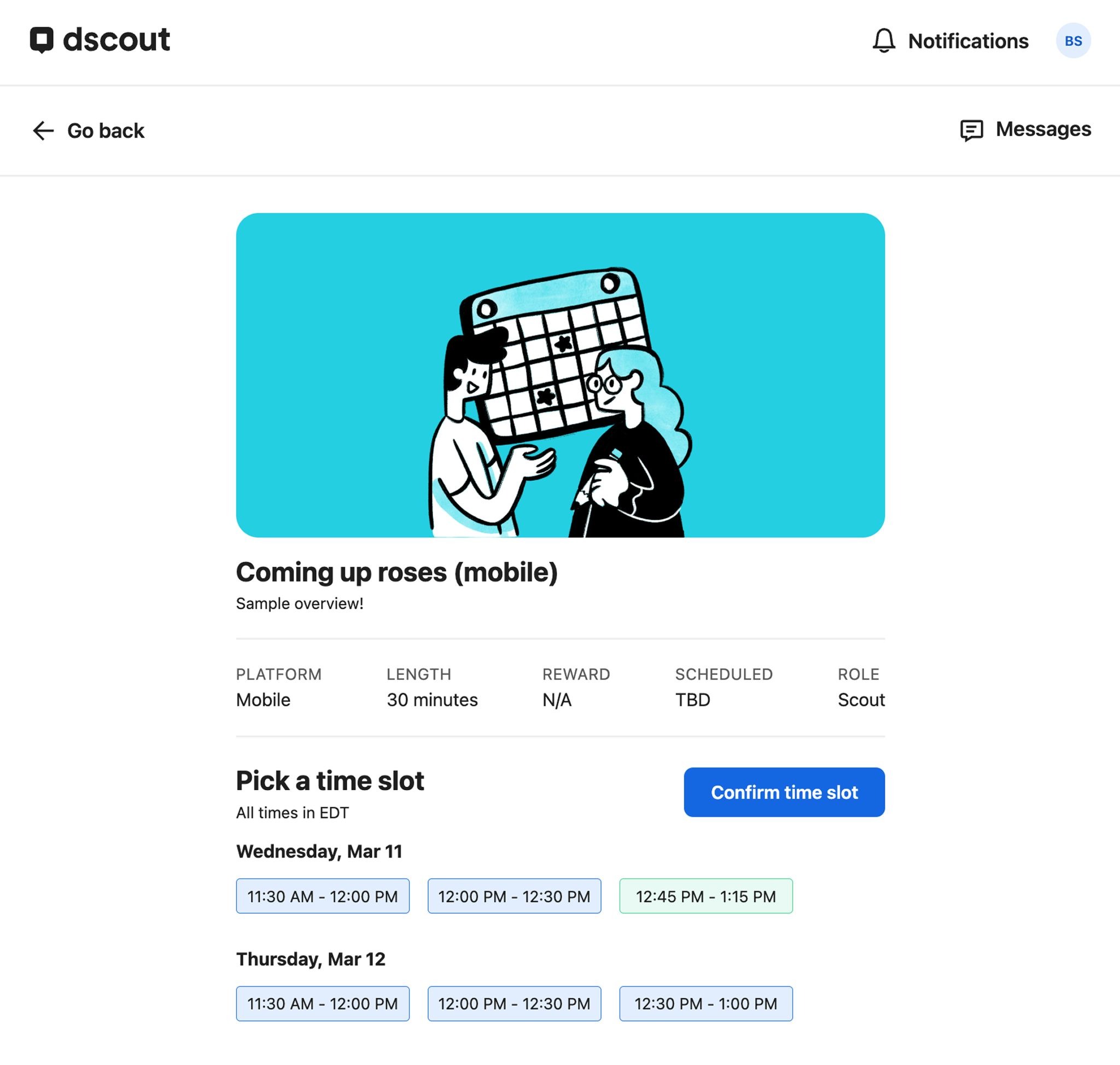
After accepting the invitation, participants will be able to select a time slot for their interview session:
## Time slot selection
After accepting the invitation, participants will be able to select a time slot for their interview session:
 {% hint style="warning" %}
If you have yet to publish time slots for your interview study, you’ll need to either follow up with your participants to schedule their sessions or assign them manually. For more information, see [Manage time slots in an interview study](/interview-studies/create-an-interview-study/manage-time-slots-in-an-interview-study.md).
{% endhint %}
## Dscout app download
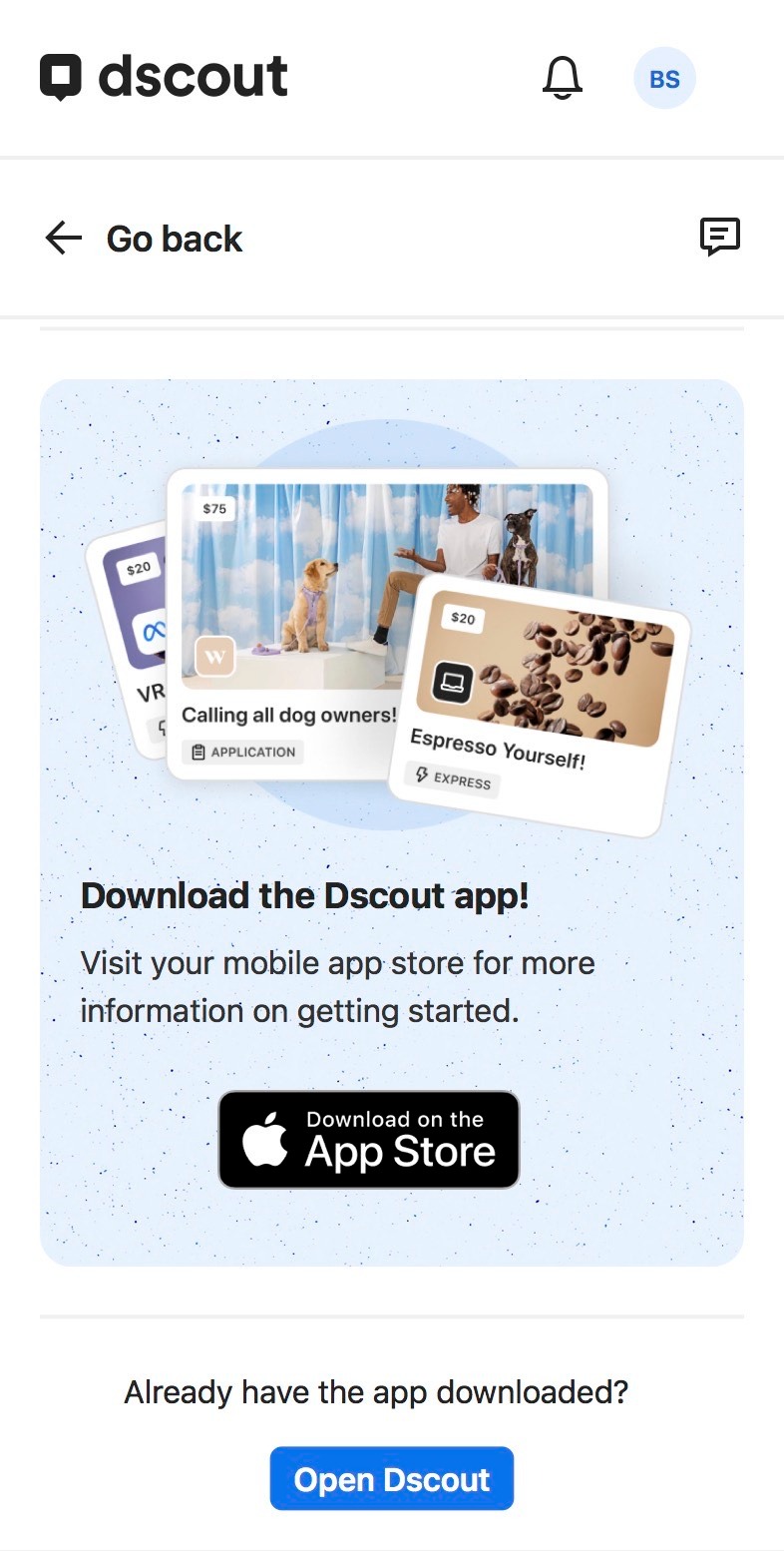
Once participants have selected a time slot, they’ll see a link to download the Dscout mobile app (or a QR code to scan to take them there):
{% hint style="warning" %}
If you have yet to publish time slots for your interview study, you’ll need to either follow up with your participants to schedule their sessions or assign them manually. For more information, see [Manage time slots in an interview study](/interview-studies/create-an-interview-study/manage-time-slots-in-an-interview-study.md).
{% endhint %}
## Dscout app download
Once participants have selected a time slot, they’ll see a link to download the Dscout mobile app (or a QR code to scan to take them there):
 {% hint style="warning" %}
If participants already have the Dscout app downloaded, they can click the link on this same page to **Open Dscout**.
{% endhint %}
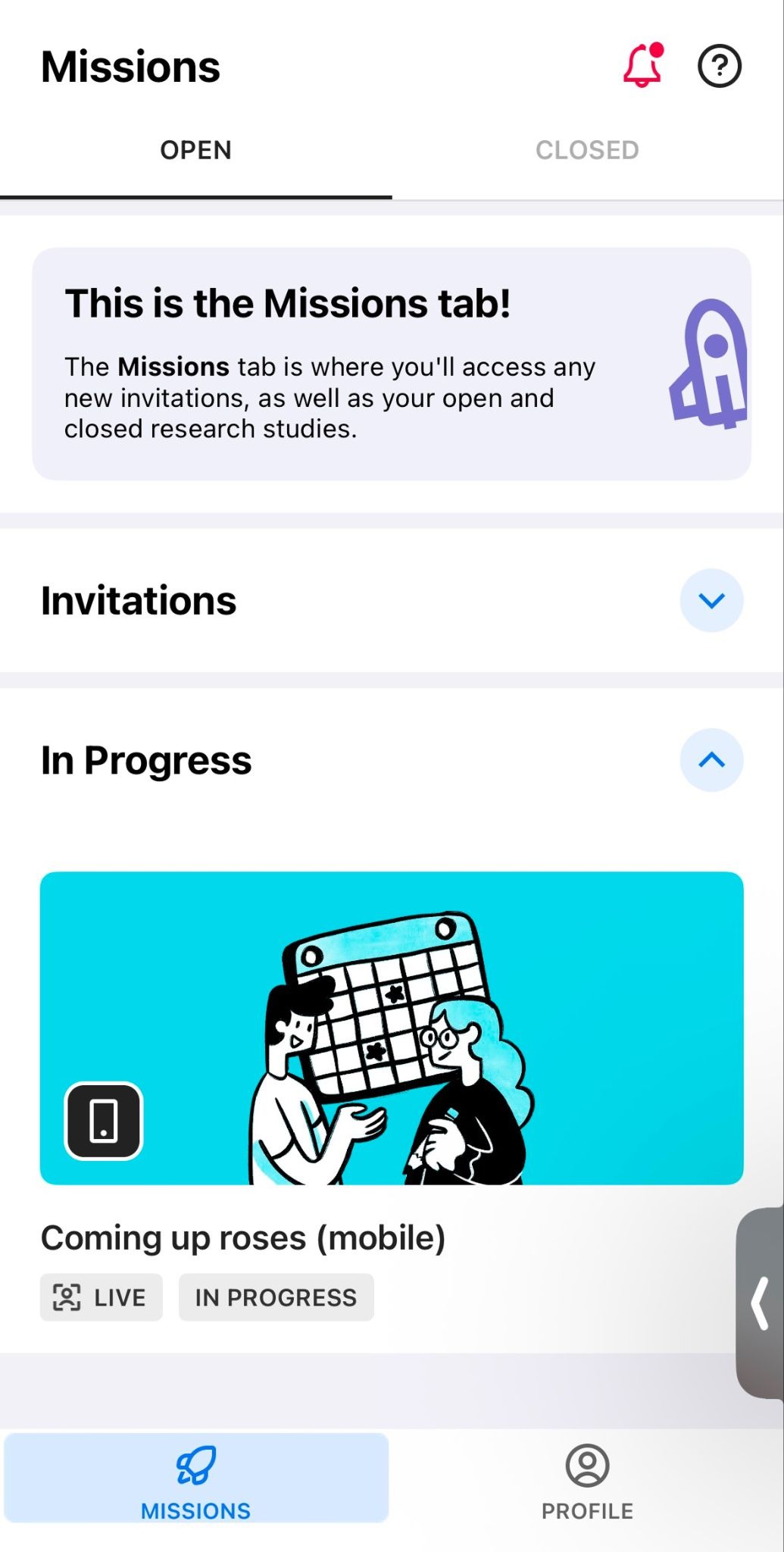
After installing and opening the app, participants will see the interview study listed under **In Progress** on the **Studies** tab:
{% hint style="warning" %}
If participants already have the Dscout app downloaded, they can click the link on this same page to **Open Dscout**.
{% endhint %}
After installing and opening the app, participants will see the interview study listed under **In Progress** on the **Studies** tab:
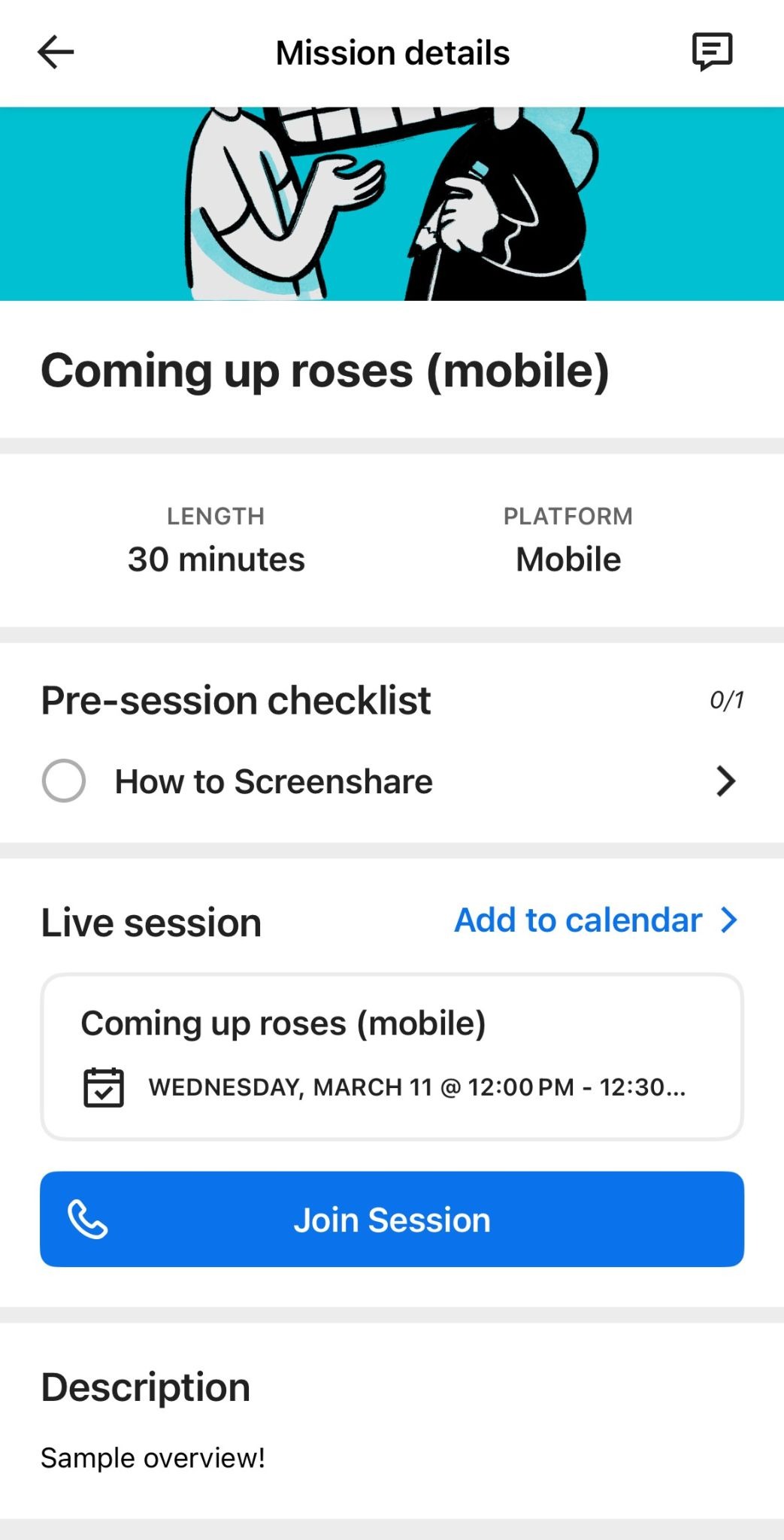
 At the time of their session, they’ll tap the study and be brought to the **Study details** page. Here, they can review a guide on how to screenshare during the session, then tap **Join session**:
 ## Hardware setup
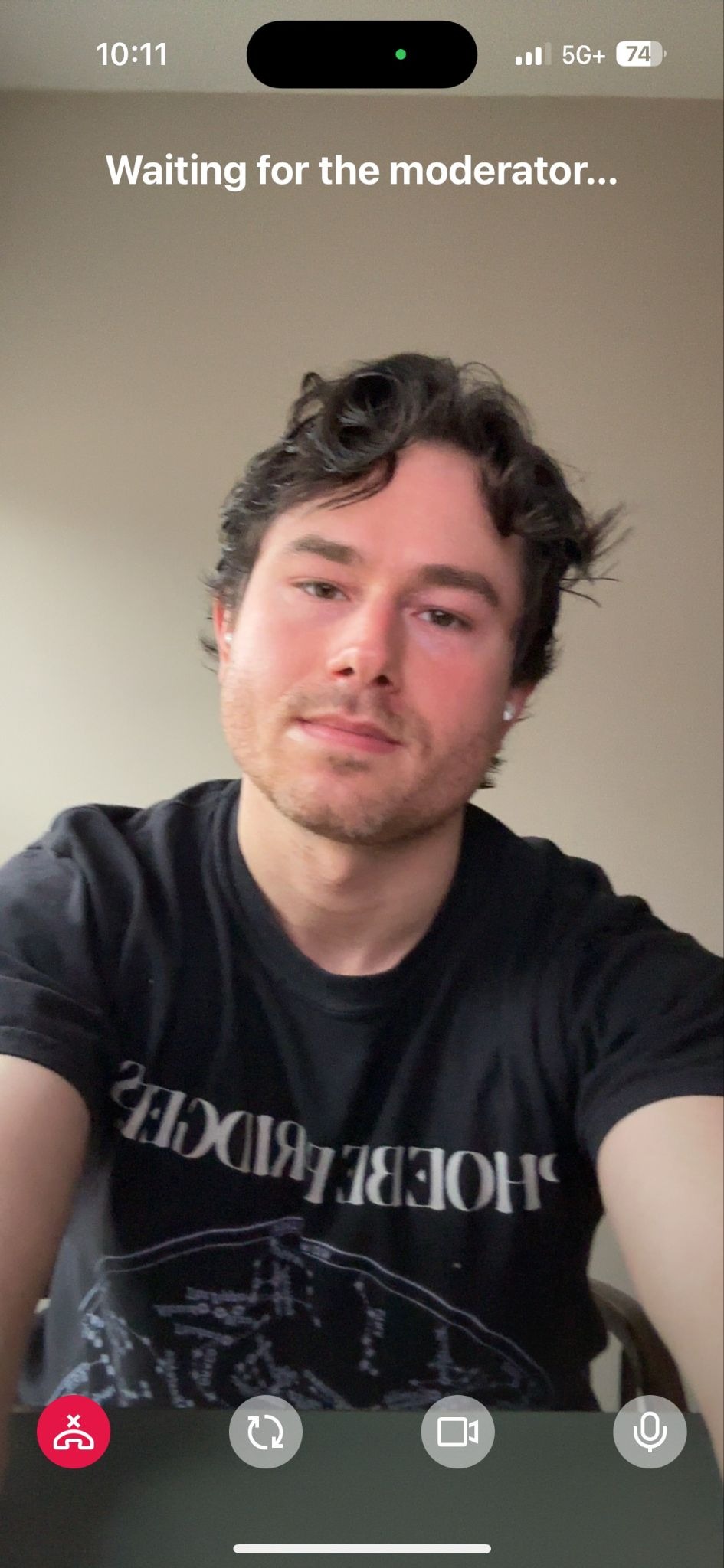
Tapping **Join session** will prompt participants to grant the necessary hardware access to the Dscout app, including camera and microphone permissions. They may be prompted to open their device’s settings to grant this access. Once they do, they’ll join the session waiting room until you start the call on your end:
## Hardware setup
Tapping **Join session** will prompt participants to grant the necessary hardware access to the Dscout app, including camera and microphone permissions. They may be prompted to open their device’s settings to grant this access. Once they do, they’ll join the session waiting room until you start the call on your end:
 If you’re ready to join a session yourself, see [Join an interview session](/interview-studies/conduct-an-interview-session/join-an-interview-session.md) for more information.
---
# Agent Instructions
This documentation is published with GitBook. GitBook is the documentation platform designed so that both humans and AI agents can read, navigate, and reason over technical content effectively. Learn more at gitbook.com.
## Querying This Documentation
If you need additional information that is not directly available in this page, you can query the documentation dynamically by asking a question.
Perform an HTTP GET request on the current page URL with the `ask` query parameter, and the optional `goal` query parameter:
```
GET https://help.dscout.com/interview-studies/manage-an-interview-study/first-time-participant-flow-in-a-mobile-interview-study.md?ask=&goal=
```
`ask` is the immediate question: it should be specific, self-contained, and written in natural language.
`goal` is optional and describes the broader end goal you are ultimately trying to accomplish on behalf of the user. GitBook uses it to tailor the answer towards what is most useful for that goal.
The response will contain a direct answer to the question and relevant excerpts and sources from the documentation.
Use this mechanism when the answer is not explicitly present in the current page, you need clarification or additional context, or you want to retrieve related documentation sections.
If you’re ready to join a session yourself, see [Join an interview session](/interview-studies/conduct-an-interview-session/join-an-interview-session.md) for more information.
---
# Agent Instructions
This documentation is published with GitBook. GitBook is the documentation platform designed so that both humans and AI agents can read, navigate, and reason over technical content effectively. Learn more at gitbook.com.
## Querying This Documentation
If you need additional information that is not directly available in this page, you can query the documentation dynamically by asking a question.
Perform an HTTP GET request on the current page URL with the `ask` query parameter, and the optional `goal` query parameter:
```
GET https://help.dscout.com/interview-studies/manage-an-interview-study/first-time-participant-flow-in-a-mobile-interview-study.md?ask=&goal=
```
`ask` is the immediate question: it should be specific, self-contained, and written in natural language.
`goal` is optional and describes the broader end goal you are ultimately trying to accomplish on behalf of the user. GitBook uses it to tailor the answer towards what is most useful for that goal.
The response will contain a direct answer to the question and relevant excerpts and sources from the documentation.
Use this mechanism when the answer is not explicitly present in the current page, you need clarification or additional context, or you want to retrieve related documentation sections.