> For the complete documentation index, see [llms.txt](https://help.dscout.com/llms.txt). Markdown versions of documentation pages are available by appending `.md` to page URLs; this page is available as [Markdown](https://help.dscout.com/private-panels/panel-management/bulk-actions-in-the-panel.md).
# Bulk actions in the panel
Managing panelists can be done in **Panel Panelists**. Editing, tagging, exporting, and deleting panelist profiles can be done through **Bulk Actions**.
One or more panelists must be selected first before you can use **Bulk Actions**. You can select one panelist at a time by ticking the checkbox that appears beside their name when you hover your mouse cursor over their row. Or you can select all panelists by clicking the ticked checkbox icon beside the **First Name** column header, then clicking **Select all** from the options.

The **Bulk Actions** button will then be activated. Click to show all available actions.
Then, click your preferred action. Follow the steps below to Edit, Tag, Export, or Delete using Bulk Actions.
## Bulk Edit
The bulk edit feature is only appropriate for editing a column or panel property that could be the same for multiple panelists such as Opt in and Gender. Only one panel property can be edited at a time.
Here's how you can do it:
{% stepper %}
{% step %}
Select **Edit Panelists** from the Bulk Actions drop-down options.
{% endstep %}
{% step %}
A pop-up will appear where you can indicate which column to edit and its new value. First, indicate the column, which relates to panel property, that you want to edit by clicking the drop-down button below **Column to update**. Then, select from the options. You can either scroll down the options or type the column title on the search box to find it.
{% endstep %}
{% step %}
The **New Value** depends on the selected column. Hence, it can be a drop-down, short text, long text, date, etc. In any case, fill out the **New Value** field.
{% endstep %}
{% step %}
Once filled out, click the **Update \[number] panelists button**.
{% endstep %}
{% step %}
A dialog box will pop up at the top of your screen where you can either confirm or cancel the action. Click **OK** to proceed.

{% endstep %}
{% endstepper %}
## Bulk Tag
Tags are used to link panelists to certain topics. This will help your company easily find suitable panelists for studies about different topics.
Here's how you can tag multiple panelists at the same time:
{% stepper %}
{% step %}
Select **Tag Panelists** from the Bulk Actions drop-down options.
{% endstep %}
{% step %}
A pop-up will appear where you can search for or create new tags by typing on the textbox within it. The **Create new tag: "tag"** button will appear if you're using a new tag. Click it to create the new tag and assign it to the selected panelists.

{% endstep %}
{% step %}
Existing tags will appear below the search box. You can click any of the tags to assign it to the selected panelists.

{% endstep %}
{% endstepper %}
## Bulk Export
Panelists' details can be exported all at once from Private Panels, should it be needed for you study. Follow the steps below to export the data.
{% stepper %}
{% step %}
Select **Export to CSV** from the **Bulk Actions** drop-down options.
{% endstep %}
{% step %}
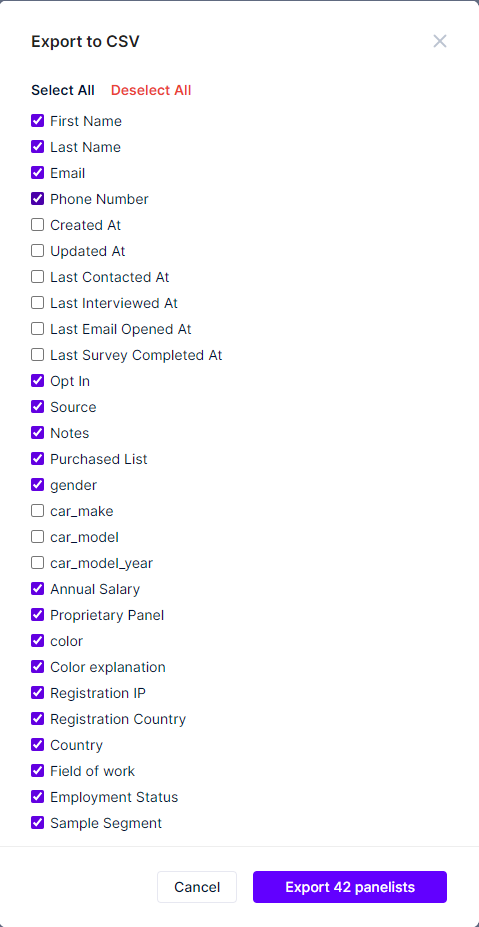
A pop-up will appear where you can select which properties of the panels you'd like to import. All of the panel properties would be selected by default, untick the checkboxes of those that you don't want to include.
Or, if there are only a few that you'd like to export, click **Deselect All** then tick the checkboxes one by one.
{% endstep %}
{% step %}
After selecting, click the **Export \[#] panelists** button.
{% endstep %}
{% endstepper %}
 ## Bulk Delete
Here's how you can delete multiple panelists at the same time:
{% stepper %}
{% step %}
Select **Delete from panel** from the Bulk Actions drop-down options.
{% endstep %}
{% step %}
A dialog will pop-up at the top of your screen where you can either confirm or cancel the action. To proceed, type **permanently delete panelists** on the textbox.
{% endstep %}
{% step %}
Click **OK** on the pop-up.

{% endstep %}
{% endstepper %}
{% hint style="info" %}
Private Panels was previously managed outside of Dscout, so you may see a different logo and URL in some places. If you have any questions, contact .
{% endhint %}
---
# Agent Instructions
This documentation is published with GitBook. GitBook is the documentation platform designed so that both humans and AI agents can read, navigate, and reason over technical content effectively. Learn more at gitbook.com.
## Querying This Documentation
If you need additional information that is not directly available in this page, you can query the documentation by asking a question.
Perform an HTTP GET request on the following URL with the `ask` and `goal` query parameters:
```
GET https://help.dscout.com/private-panels/panel-management/bulk-actions-in-the-panel.md?ask=&goal=
```
`ask` is the immediate question: it should be specific, self-contained, and written in natural language.
`goal` is what the user is ultimately trying to achieve, the reason they need the answer. Sharing it helps GitBook give you a better, more relevant answer. A goal is most helpful when it describes the outcome the user wants rather than restating the question. For example, with `ask=how do I create an API token`, a goal like `automate deployments from our CI pipeline` lets GitBook tailor the answer to that use case.
The response will contain a direct answer to the question and relevant excerpts and sources from the documentation.
Use this mechanism when the answer is not explicitly present in the current page, you need clarification or additional context, or you want to retrieve related documentation sections.
## Bulk Delete
Here's how you can delete multiple panelists at the same time:
{% stepper %}
{% step %}
Select **Delete from panel** from the Bulk Actions drop-down options.
{% endstep %}
{% step %}
A dialog will pop-up at the top of your screen where you can either confirm or cancel the action. To proceed, type **permanently delete panelists** on the textbox.
{% endstep %}
{% step %}
Click **OK** on the pop-up.

{% endstep %}
{% endstepper %}
{% hint style="info" %}
Private Panels was previously managed outside of Dscout, so you may see a different logo and URL in some places. If you have any questions, contact .
{% endhint %}
---
# Agent Instructions
This documentation is published with GitBook. GitBook is the documentation platform designed so that both humans and AI agents can read, navigate, and reason over technical content effectively. Learn more at gitbook.com.
## Querying This Documentation
If you need additional information that is not directly available in this page, you can query the documentation by asking a question.
Perform an HTTP GET request on the following URL with the `ask` and `goal` query parameters:
```
GET https://help.dscout.com/private-panels/panel-management/bulk-actions-in-the-panel.md?ask=&goal=
```
`ask` is the immediate question: it should be specific, self-contained, and written in natural language.
`goal` is what the user is ultimately trying to achieve, the reason they need the answer. Sharing it helps GitBook give you a better, more relevant answer. A goal is most helpful when it describes the outcome the user wants rather than restating the question. For example, with `ask=how do I create an API token`, a goal like `automate deployments from our CI pipeline` lets GitBook tailor the answer to that use case.
The response will contain a direct answer to the question and relevant excerpts and sources from the documentation.
Use this mechanism when the answer is not explicitly present in the current page, you need clarification or additional context, or you want to retrieve related documentation sections.