> For the complete documentation index, see [llms.txt](https://help.dscout.com/llms.txt). Markdown versions of documentation pages are available by appending `.md` to page URLs; this page is available as [Markdown](https://help.dscout.com/private-panels/panel-management/panel-filters-and-segments.md).
# Panel filters and segments
## Filtering the panel
If your company has a large pool of panelists, filtering the panel can come in handy when you're looking for panelists with specific attributes or [panel properties](/private-panels/panel-management/panel-properties.md). It can also be used to find emails that weren't received by panelists in their inbox, i.e. bounced emails or spam complaints, discussed in our [Find bounced emails and spam complaints](/private-panels/panel-management/find-bounced-emails-and-spam-complaints.md) guide.
Here's how you can filter the panel:
{% stepper %}
{% step %}
In **Panel Panelists**, click the **+ Add Filter** button.
{% endstep %}
{% step %}
Select the panel property or custom panel property that you'd like to filter by from the drop-down options. A set of options will appear based on the property you choose.
{% endstep %}
{% step %}
You can add multiple filters. By default, they will be joined by an AND operand but you can change this to an OR operand by clicking it.

{% endstep %}
{% endstepper %}
## Filter groups
Additionally, you can create filter groups by selecting the **+** icon next to the filter. This allows you to group filters with and/or, and compare them to other filter groups. (eg: TRUE in column A and TRUE in column B *or* TRUE in column A and TRUE in column C.)

## Switching between panels
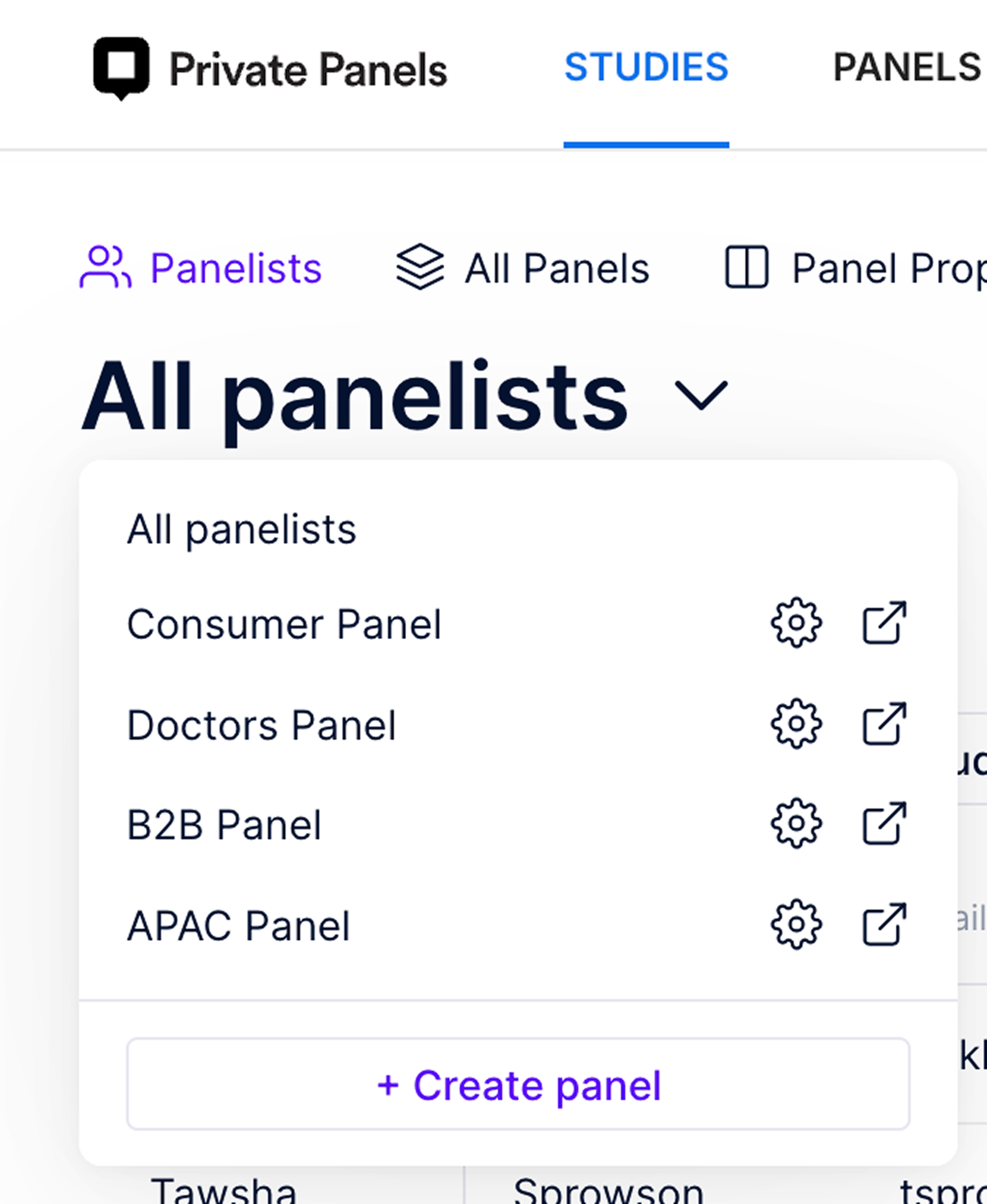
To switch between Panels on the **Panelists** page, click on the large bold text at the top of the page to reveal a list of your [Multiple Panels](/private-panels/panel-management/multiple-panels.md).
 ## Saving a Segment
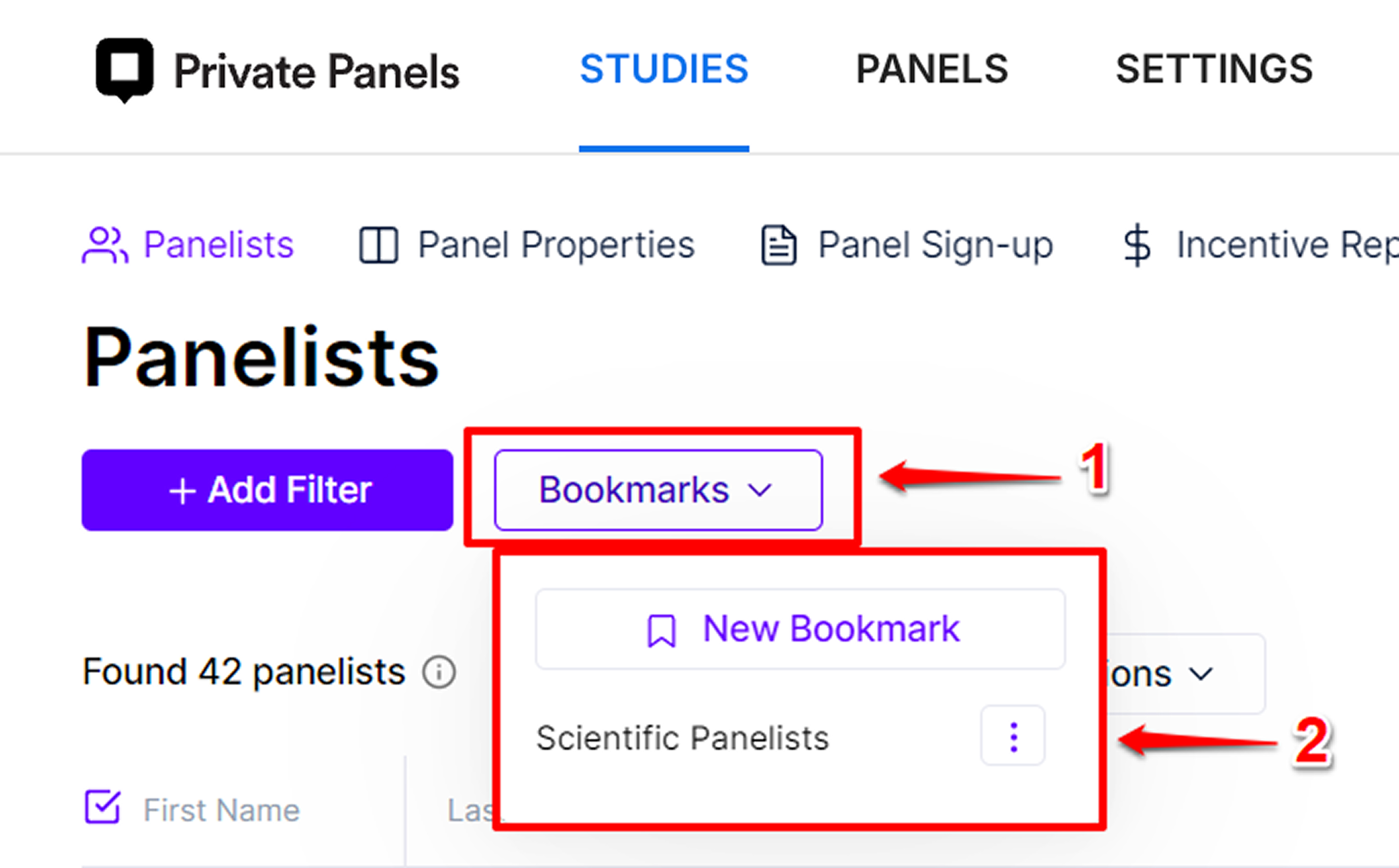
Once you've filtered the panel, you can save the filters you've created so you can use them for next time. To do this, follow the steps below:
{% stepper %}
{% step %}
Click **Segments**.
{% endstep %}
{% step %}
The drop-down options will appear, click **+ New Segment**.
{% endstep %}
{% step %}
Type what you'd like to name the segment on the pop-up that appears at the top of the screen, then click **OK**.

{% endstep %}
{% endstepper %}
## Loading a Segment
If you have a saved filter, you can load it by following the steps below:
{% stepper %}
{% step %}
In **Panel Panelists**, click the **Segments** drop-down button.
{% endstep %}
{% step %}
Select the **Segment** from the drop-down options.
## Saving a Segment
Once you've filtered the panel, you can save the filters you've created so you can use them for next time. To do this, follow the steps below:
{% stepper %}
{% step %}
Click **Segments**.
{% endstep %}
{% step %}
The drop-down options will appear, click **+ New Segment**.
{% endstep %}
{% step %}
Type what you'd like to name the segment on the pop-up that appears at the top of the screen, then click **OK**.

{% endstep %}
{% endstepper %}
## Loading a Segment
If you have a saved filter, you can load it by following the steps below:
{% stepper %}
{% step %}
In **Panel Panelists**, click the **Segments** drop-down button.
{% endstep %}
{% step %}
Select the **Segment** from the drop-down options.