> For the complete documentation index, see [llms.txt](https://help.dscout.com/llms.txt). Markdown versions of documentation pages are available by appending `.md` to page URLs; this page is available as [Markdown](https://help.dscout.com/private-panels/studies/private-panels-study-scheduling.md).
# Private Panels study scheduling
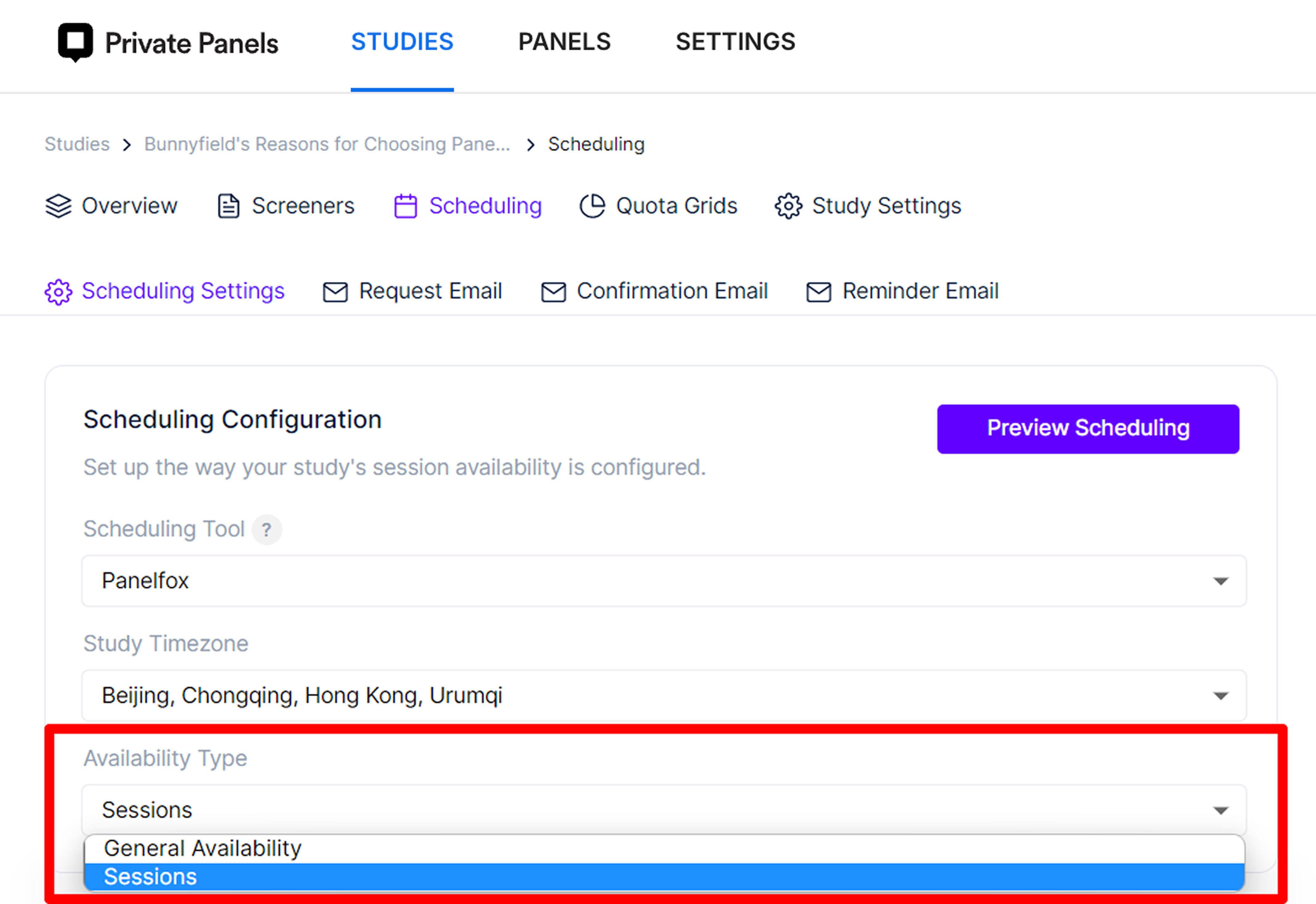
Scheduling respondents can be done by you or by the respondents themselves. If your team and respondents have limited time to meet, you can set up pre-defined timeslots or sessions in **Study Scheduling** that the respondents can pick from so you can set aside a time that works for both parties. Otherwise, you can set **Availability Type** to **General Availability**.

To start scheduling respondents, follow the steps below:
## Set Custom Schedule
Whether the **Availability Type** is set to General Availability or Sessions, you'll be able to set custom schedules for respondents by:
{% stepper %}
{% step %}
Within the study's **Overview** sub-page, click the name of the respondent you're going to schedule.
{% endstep %}
{% step %}
Click **+ Choose Session**.
{% endstep %}
{% step %}
Click **Set Custom**.
{% endstep %}
{% step %}
Select a date and set a time on the **Choose a date & time** pop-up.
{% endstep %}
{% step %}
Click the **Save** button.

{% endstep %}
{% endstepper %}
## Assign Sessions
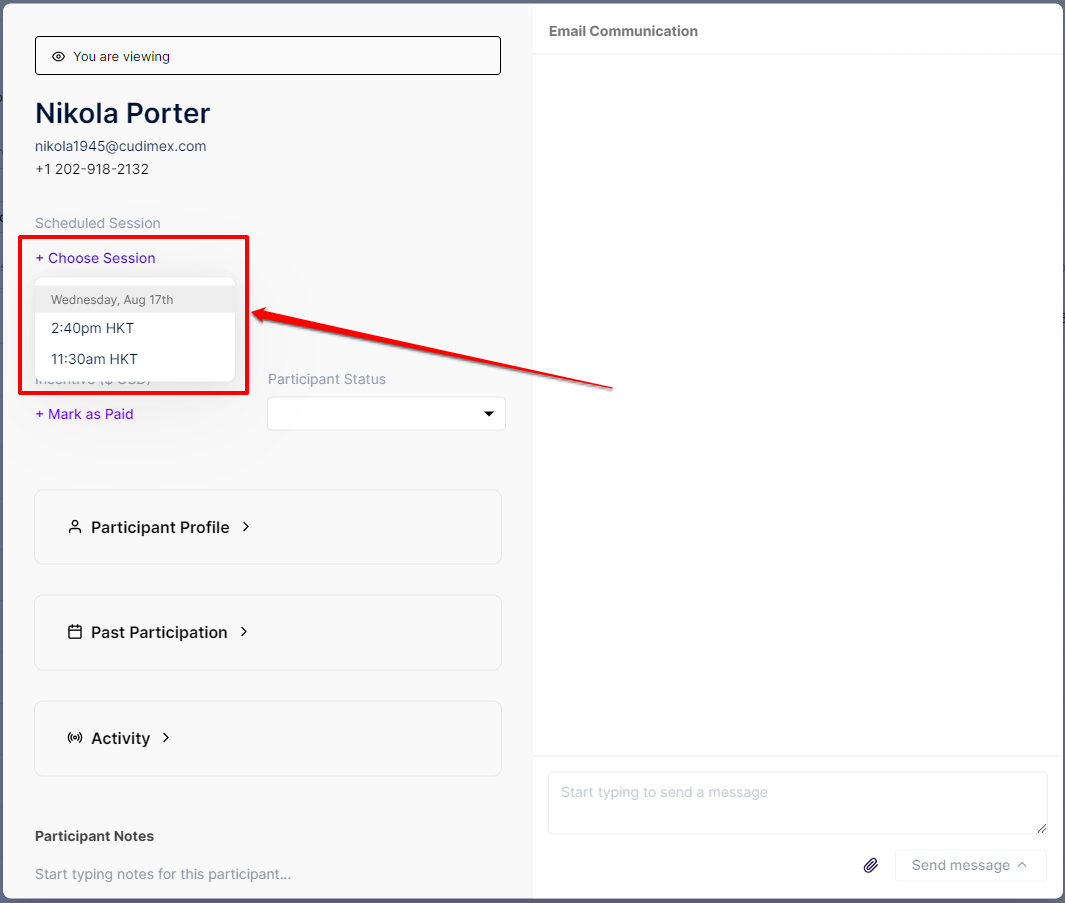
To schedule candidates manually, open a study then click on the panelist name.
 Click **+ Choose Session** on the pop-up window then select from the drop-down options.
 ## Respondent Local Timezone
You're able to update the panelist's time zone, which can be different from the Study Timezone. All reminders and confirmations your Candidate receive will show them their local time zone.

## Respondent Scheduling Themselves
To send your respondents a list of available times, follow this section. Ensure you have enough **Availability** set. You can click **Preview Scheduling** to verify what the respondent will see.
{% hint style="info" %}
**Note:** If you have a calendar integration set up (e.g. GCal or Outlook), some of your selected times may be unavailable due to "free busy" conflicts with the existing meetings in your calendar.
{% endhint %}

This **Calendar Event** section will be used in reminder emails. (see **Customizing Calendar Event** section for additional options)

Update the **Request Email** template with content you want the candidate to receive.

Go back in **Study Overview**, select the respondents you wish to email, and click **Send Message Send scheduling request**. Once the email is sent, and the panelist clicks on the scheduling link, they will be taken to the scheduling page and all available sessions will be shown.
## Respondent Local Timezone
You're able to update the panelist's time zone, which can be different from the Study Timezone. All reminders and confirmations your Candidate receive will show them their local time zone.

## Respondent Scheduling Themselves
To send your respondents a list of available times, follow this section. Ensure you have enough **Availability** set. You can click **Preview Scheduling** to verify what the respondent will see.
{% hint style="info" %}
**Note:** If you have a calendar integration set up (e.g. GCal or Outlook), some of your selected times may be unavailable due to "free busy" conflicts with the existing meetings in your calendar.
{% endhint %}

This **Calendar Event** section will be used in reminder emails. (see **Customizing Calendar Event** section for additional options)

Update the **Request Email** template with content you want the candidate to receive.

Go back in **Study Overview**, select the respondents you wish to email, and click **Send Message Send scheduling request**. Once the email is sent, and the panelist clicks on the scheduling link, they will be taken to the scheduling page and all available sessions will be shown.
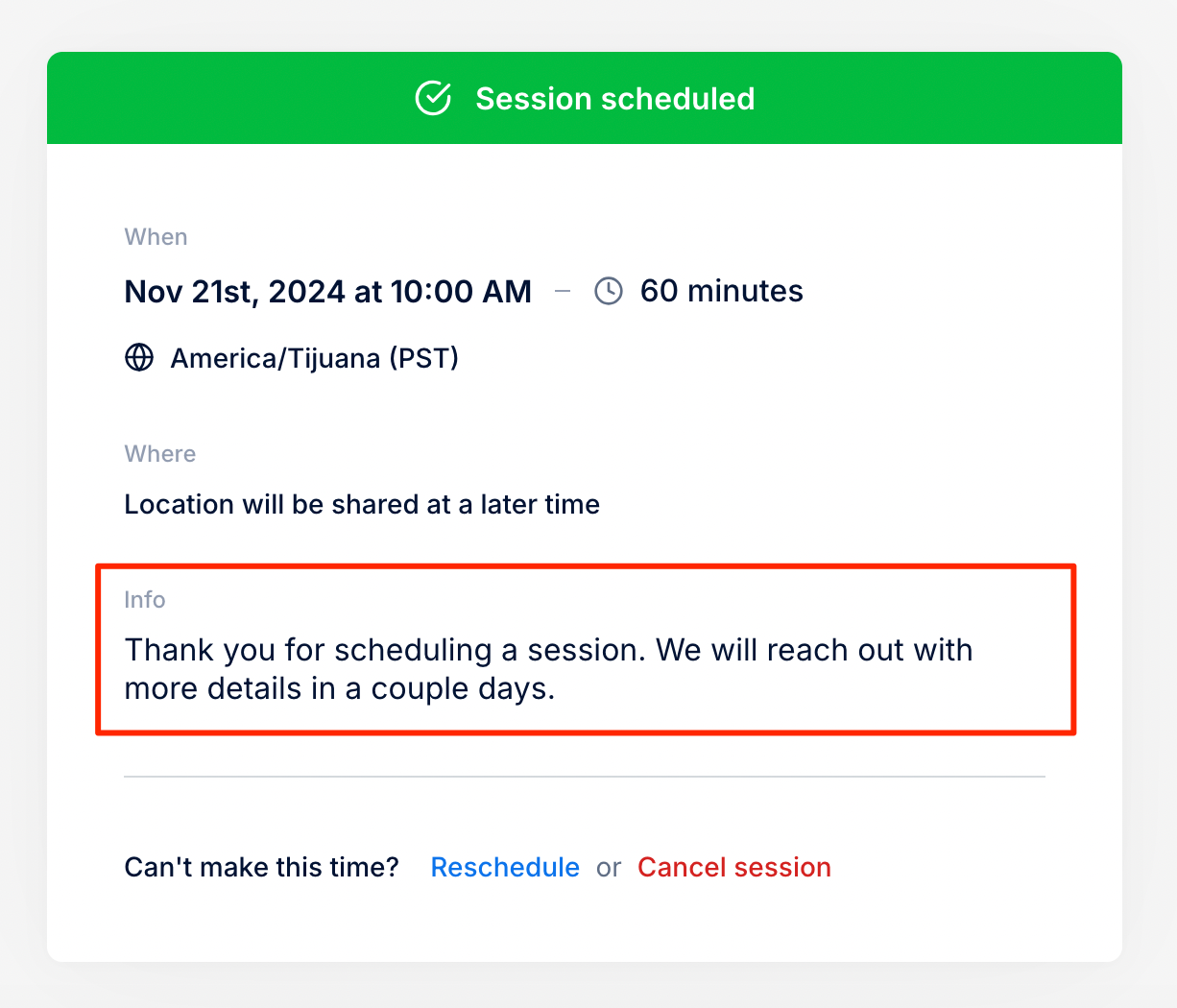
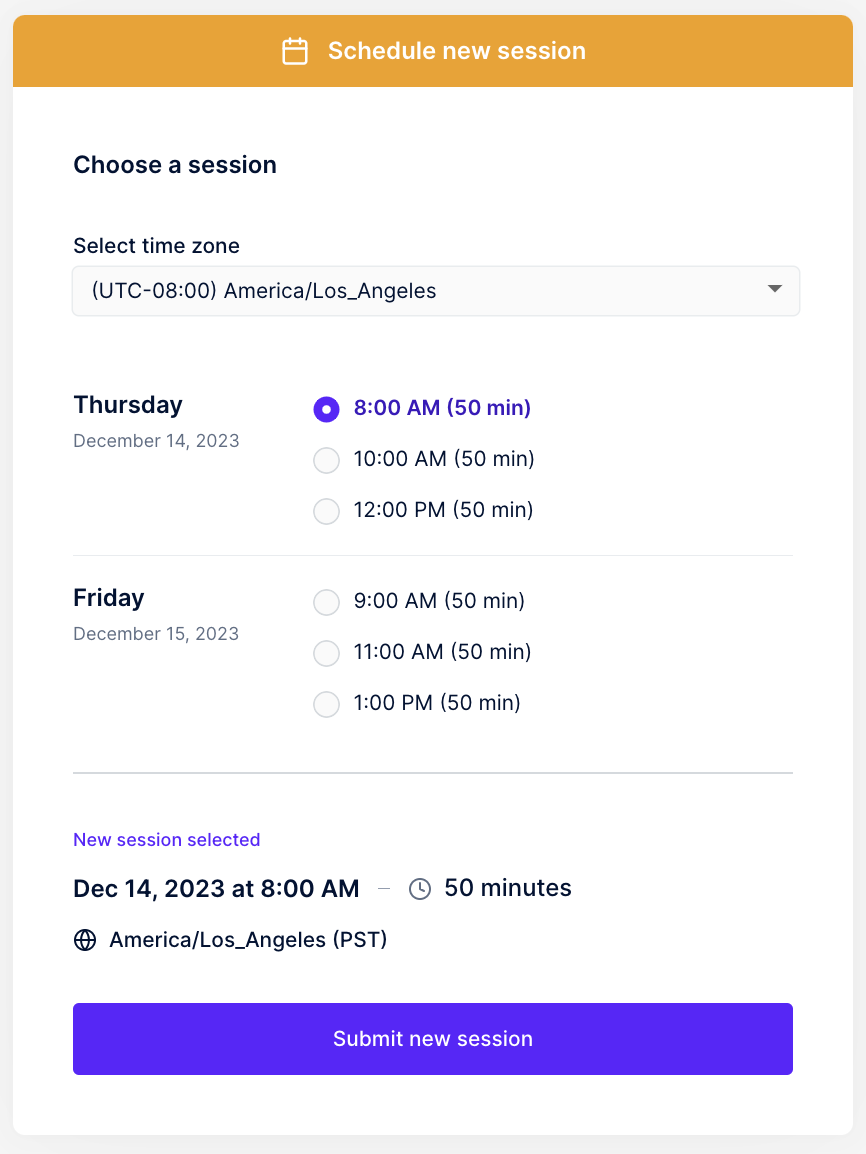 When they confirm their session, they will be shown a Session scheduled modal that contains their session information.
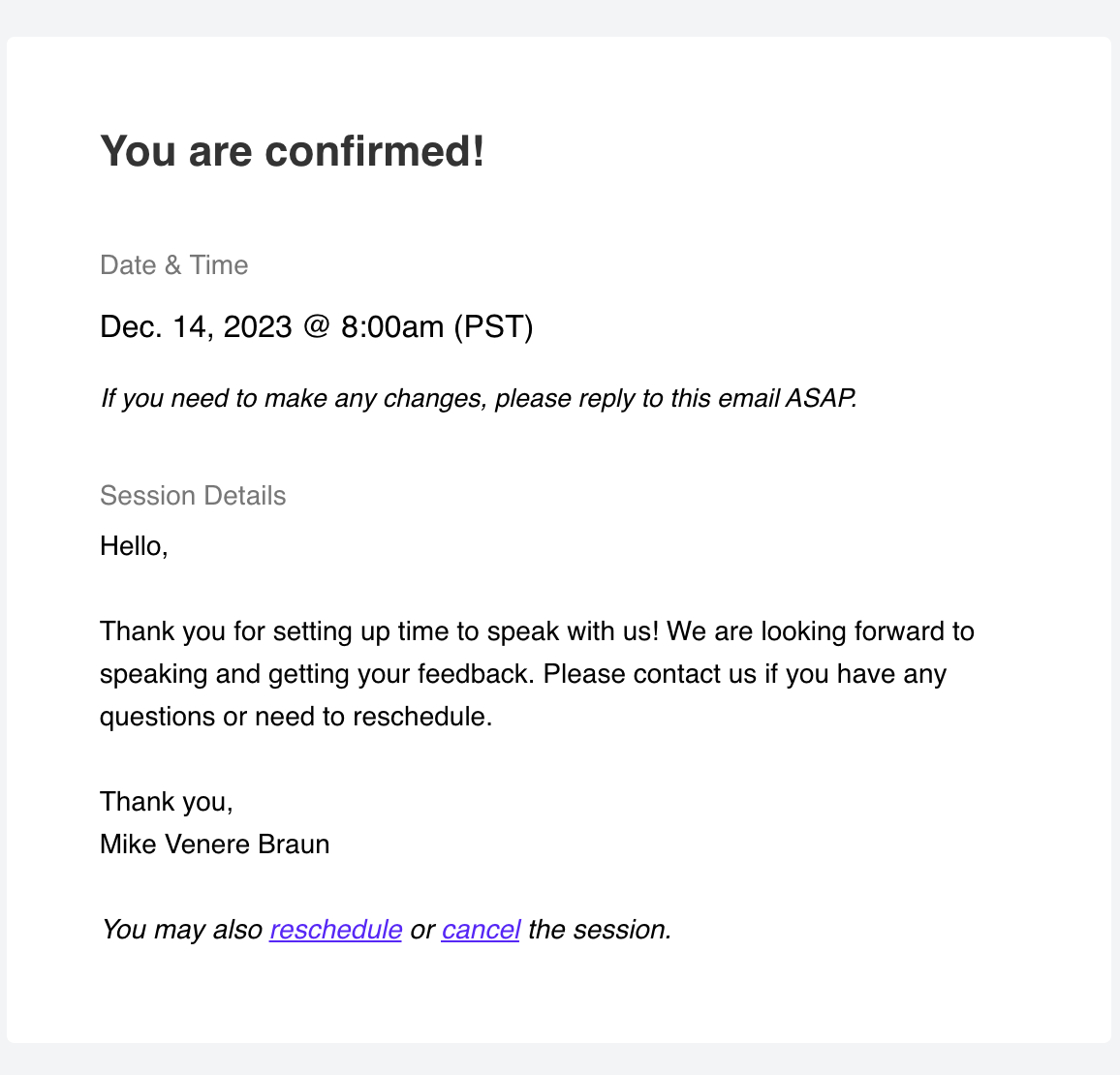
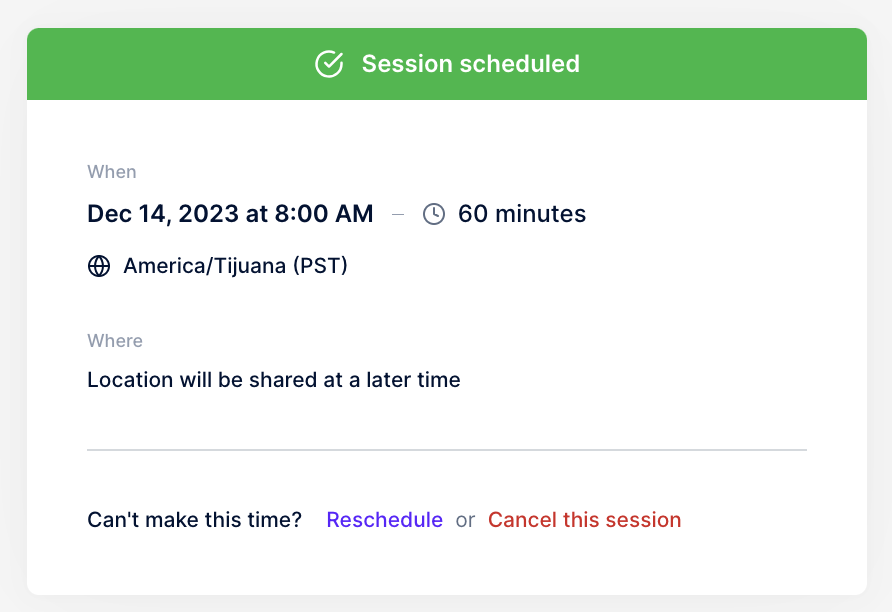 The respondent will also receive an email confirmation with the same information.
 ## Respondent Cancelling or Re-scheduling Themselves
If you want the panelists to be able to cancel or re-schedule by themselves, go to **Settings General**. Scroll down to the **Panelist Experience** section, then turn on the toggle bar beside **Allow panelists to reschedule & cancel sessions**. This will be applied to all of your studies.

The respondents will be able to re-schedule or cancel by clicking the **reschedule** or **cancel** hyperlinks at the bottom of the automated session reminder or confirmation emails sent to them.

They will also be able to see these links below the session schedule for that study when they're logged in to their Panelist Profile.

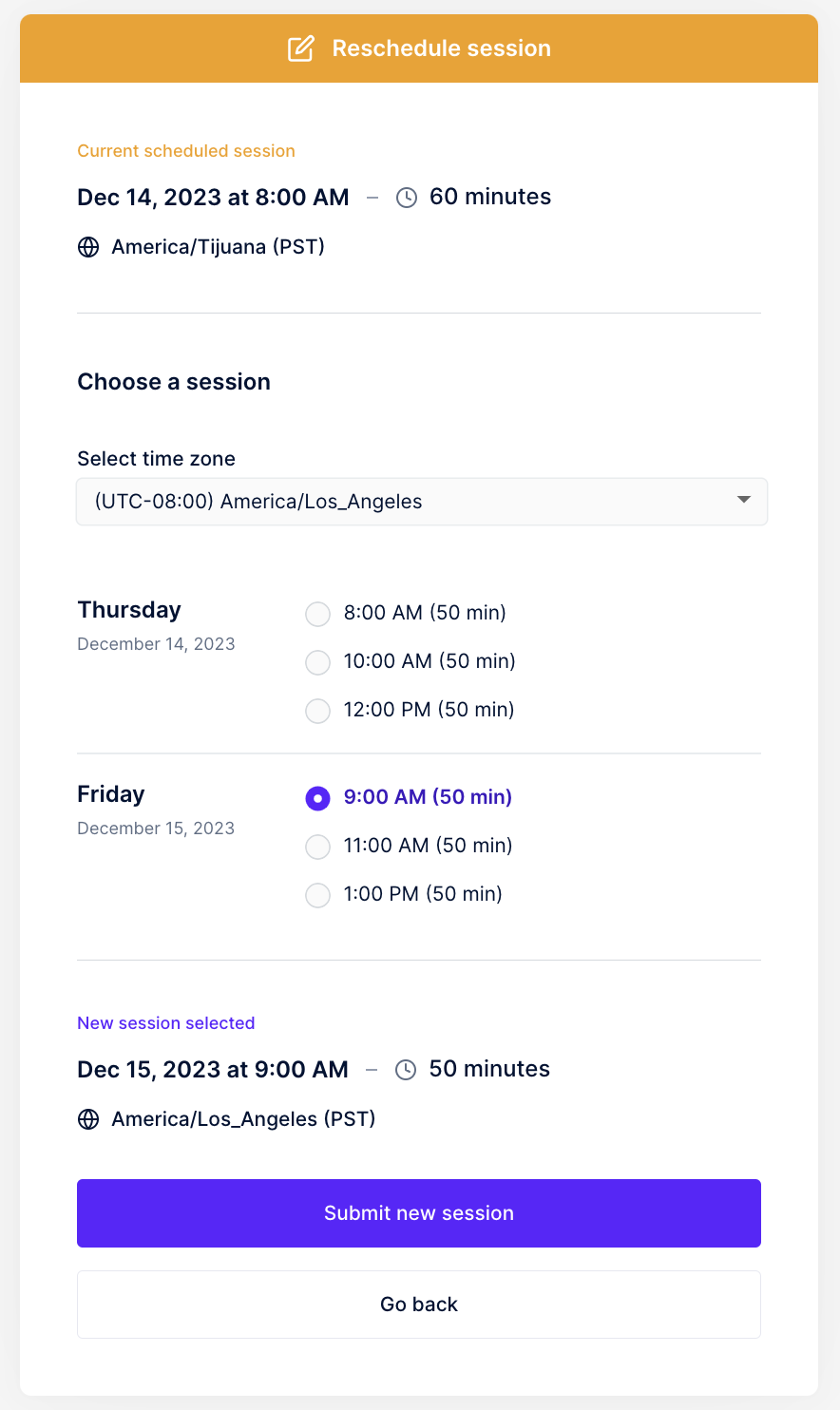
If they click **reschedule**, the scheduling page, where they can pick a new session, will open in a new tab.
## Respondent Cancelling or Re-scheduling Themselves
If you want the panelists to be able to cancel or re-schedule by themselves, go to **Settings General**. Scroll down to the **Panelist Experience** section, then turn on the toggle bar beside **Allow panelists to reschedule & cancel sessions**. This will be applied to all of your studies.

The respondents will be able to re-schedule or cancel by clicking the **reschedule** or **cancel** hyperlinks at the bottom of the automated session reminder or confirmation emails sent to them.

They will also be able to see these links below the session schedule for that study when they're logged in to their Panelist Profile.

If they click **reschedule**, the scheduling page, where they can pick a new session, will open in a new tab.
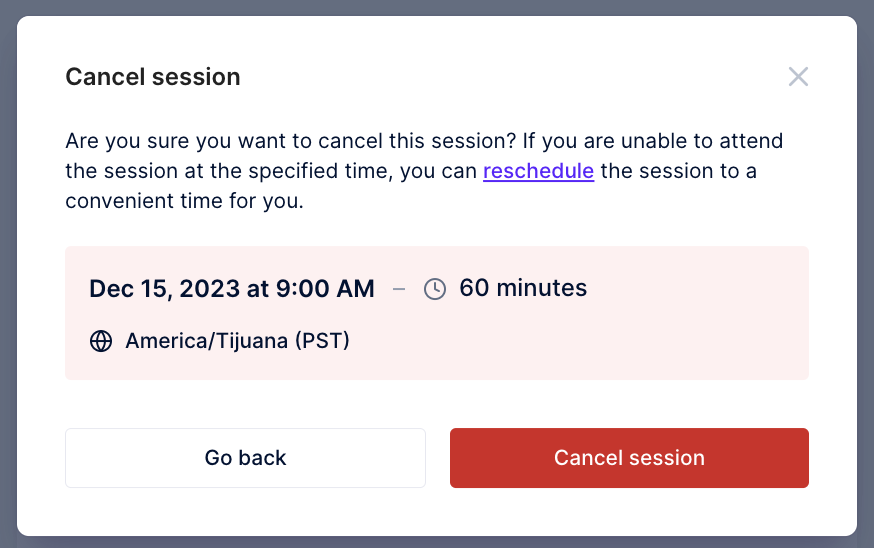
 If they click **cancel**, a page will open in a new tab where they can proceed with cancelling the session. They can proceed by clicking the **Confirm, cancel this session** hyperlink. They can just close the tab if they don't want to cancel.
 ## Self scheduling confirmation
On **Study Scheduling Self-scheduling**, you are able to display a custom **Confirmation** message after your respondent schedules themselves.
## Self scheduling confirmation
On **Study Scheduling Self-scheduling**, you are able to display a custom **Confirmation** message after your respondent schedules themselves.
 ## Customizing Calendar Event Title
Both the Event Title and Event Summary text areas can be customized. **At default**, the event title will be displayed to participants as the **Public Study Title**, followed by the **first and last name** of the participant. A researcher can re-write any of the default text for these areas, and can include **Merge Tags** from participant information (like first name, last name, or any panel property). These will automatically fill in the correct information when the calendar event is received by the participant.
To use a merge tag, select the tag you would like to use in the text area from the Merge Tag dropdown. This will copy the merge tag, which you can then paste into either the Event Title or the Event Summary.
{% hint style="info" %}
**Note:** At default, the event title will be the Public Study Title, followed by the Participant First Name and Last Name.
{% endhint %}

If sessions have previously been scheduled and are yet to happen, when you make a change to either the Event Title or Event Summary, a popup will confirm you want to send out your new changes to these existing sessions and participants.

## Calendar Organizer
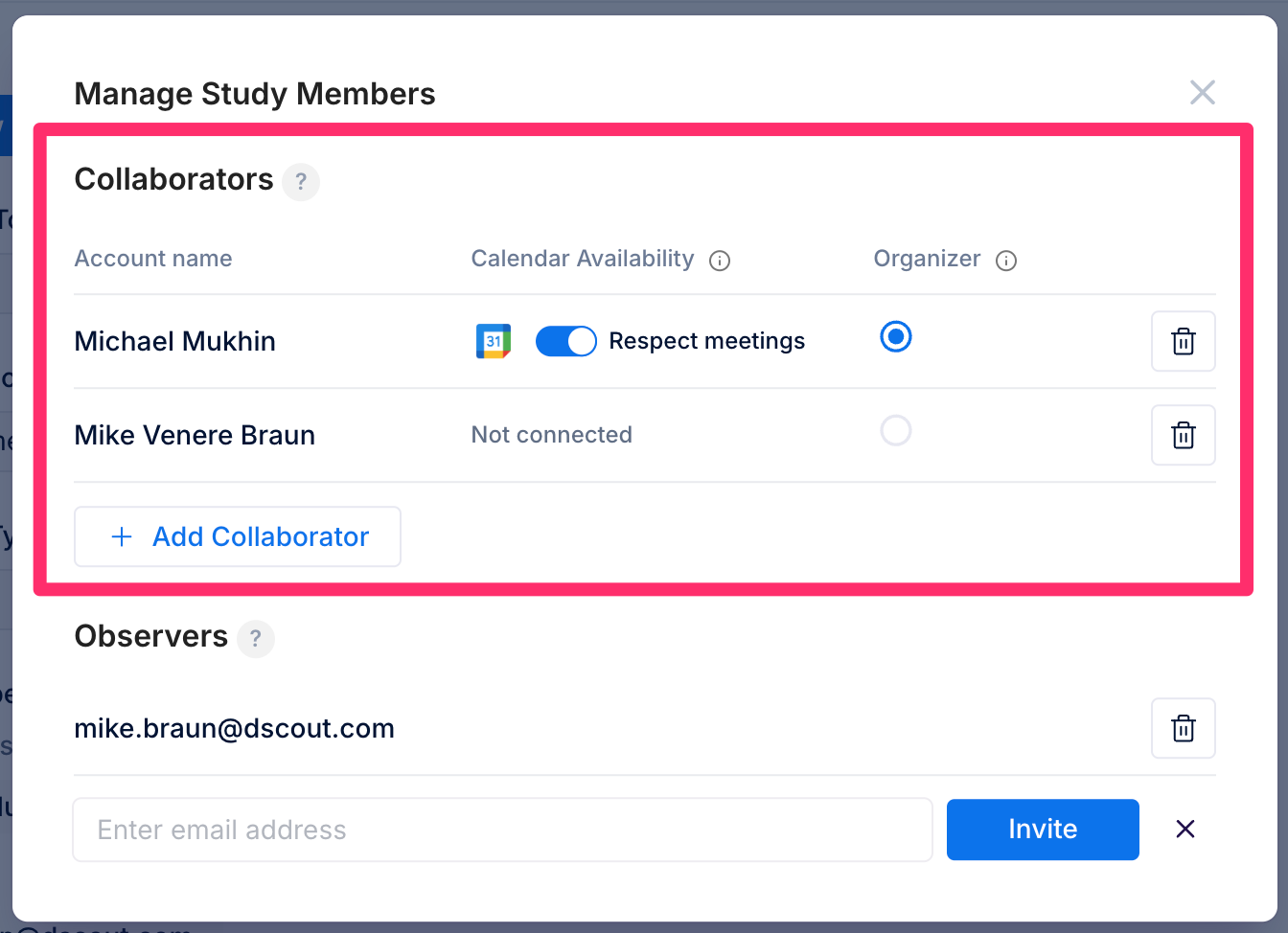
Do you have multiple collaborators on your study, but you want a specific collaborator calendar to be used as the main calendar for creating events? You can set a collaborator on a study as the **Organizer**, which will make their calendar (and any calendar integrations like Microsoft and Google) the primary source for session invitations. The below modal also allows you to add/remove collaborators and observers.
## Customizing Calendar Event Title
Both the Event Title and Event Summary text areas can be customized. **At default**, the event title will be displayed to participants as the **Public Study Title**, followed by the **first and last name** of the participant. A researcher can re-write any of the default text for these areas, and can include **Merge Tags** from participant information (like first name, last name, or any panel property). These will automatically fill in the correct information when the calendar event is received by the participant.
To use a merge tag, select the tag you would like to use in the text area from the Merge Tag dropdown. This will copy the merge tag, which you can then paste into either the Event Title or the Event Summary.
{% hint style="info" %}
**Note:** At default, the event title will be the Public Study Title, followed by the Participant First Name and Last Name.
{% endhint %}

If sessions have previously been scheduled and are yet to happen, when you make a change to either the Event Title or Event Summary, a popup will confirm you want to send out your new changes to these existing sessions and participants.

## Calendar Organizer
Do you have multiple collaborators on your study, but you want a specific collaborator calendar to be used as the main calendar for creating events? You can set a collaborator on a study as the **Organizer**, which will make their calendar (and any calendar integrations like Microsoft and Google) the primary source for session invitations. The below modal also allows you to add/remove collaborators and observers.
 ## Observers
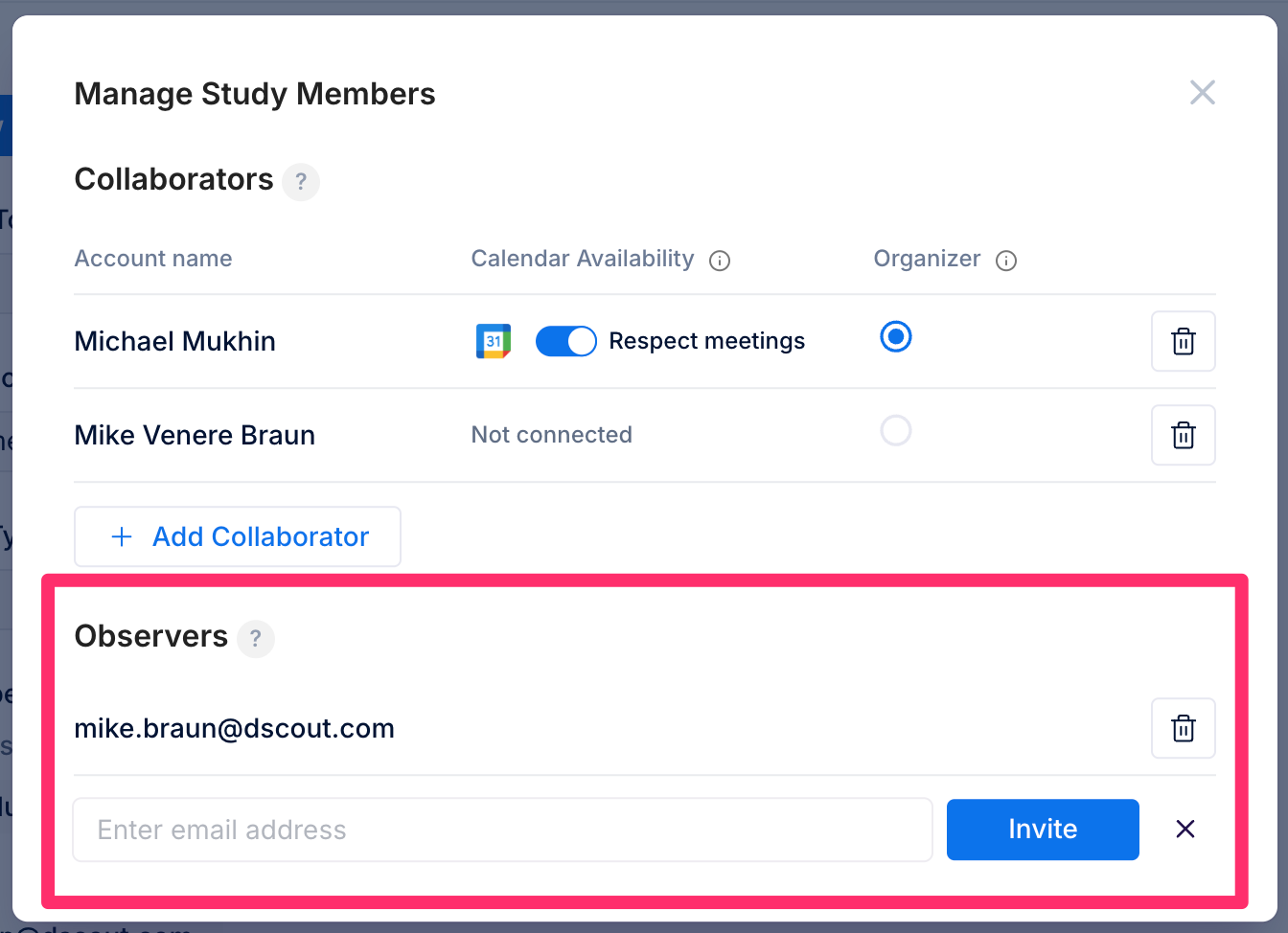
Would you like to add non-users (e.g. stakeholder, moderator) to observe research? When Google Calendar or Outlook Calendar integrations are **enabled**, you are able to add observers to the calendar invites. You can use the Manage Study Members modal to add or remove these role types.
## Observers
Would you like to add non-users (e.g. stakeholder, moderator) to observe research? When Google Calendar or Outlook Calendar integrations are **enabled**, you are able to add observers to the calendar invites. You can use the Manage Study Members modal to add or remove these role types.
 ## Integrations
Read more about our Calendaring integrations. These calendar integrations support free-busy.
* [Google Calendar](/private-panels/integrations/private-panels-integrations/google-calendar-and-meet-integration.md)
* [Microsoft Outlook Calendar](/private-panels/integrations/private-panels-integrations/ms-outlook-integration.md)
* [Calendly](/private-panels/integrations/private-panels-integrations/calendly-integration.md)
{% hint style="info" %}
**Note:** Private Panels was previously managed outside of Dscout, so you may see a different logo and URL in some places. If you have any questions, contact .
{% endhint %}
---
# Agent Instructions
This documentation is published with GitBook. GitBook is the documentation platform designed so that both humans and AI agents can read, navigate, and reason over technical content effectively. Learn more at gitbook.com.
## Querying This Documentation
If you need additional information that is not directly available in this page, you can query the documentation by asking a question.
Perform an HTTP GET request on the following URL with the `ask` and `goal` query parameters:
```
GET https://help.dscout.com/private-panels/studies/private-panels-study-scheduling.md?ask=&goal=
```
`ask` is the immediate question: it should be specific, self-contained, and written in natural language.
`goal` is what the user is ultimately trying to achieve, the reason they need the answer. Sharing it helps GitBook give you a better, more relevant answer. A goal is most helpful when it describes the outcome the user wants rather than restating the question. For example, with `ask=how do I create an API token`, a goal like `automate deployments from our CI pipeline` lets GitBook tailor the answer to that use case.
The response will contain a direct answer to the question and relevant excerpts and sources from the documentation.
Use this mechanism when the answer is not explicitly present in the current page, you need clarification or additional context, or you want to retrieve related documentation sections.
## Integrations
Read more about our Calendaring integrations. These calendar integrations support free-busy.
* [Google Calendar](/private-panels/integrations/private-panels-integrations/google-calendar-and-meet-integration.md)
* [Microsoft Outlook Calendar](/private-panels/integrations/private-panels-integrations/ms-outlook-integration.md)
* [Calendly](/private-panels/integrations/private-panels-integrations/calendly-integration.md)
{% hint style="info" %}
**Note:** Private Panels was previously managed outside of Dscout, so you may see a different logo and URL in some places. If you have any questions, contact .
{% endhint %}
---
# Agent Instructions
This documentation is published with GitBook. GitBook is the documentation platform designed so that both humans and AI agents can read, navigate, and reason over technical content effectively. Learn more at gitbook.com.
## Querying This Documentation
If you need additional information that is not directly available in this page, you can query the documentation by asking a question.
Perform an HTTP GET request on the following URL with the `ask` and `goal` query parameters:
```
GET https://help.dscout.com/private-panels/studies/private-panels-study-scheduling.md?ask=&goal=
```
`ask` is the immediate question: it should be specific, self-contained, and written in natural language.
`goal` is what the user is ultimately trying to achieve, the reason they need the answer. Sharing it helps GitBook give you a better, more relevant answer. A goal is most helpful when it describes the outcome the user wants rather than restating the question. For example, with `ask=how do I create an API token`, a goal like `automate deployments from our CI pipeline` lets GitBook tailor the answer to that use case.
The response will contain a direct answer to the question and relevant excerpts and sources from the documentation.
Use this mechanism when the answer is not explicitly present in the current page, you need clarification or additional context, or you want to retrieve related documentation sections.