> For the complete documentation index, see [llms.txt](https://help.dscout.com/llms.txt). Markdown versions of documentation pages are available by appending `.md` to page URLs; this page is available as [Markdown](https://help.dscout.com/private-panels/studies/study-filters-and-segments.md).

# Study filters and segments

When your study has a lot of respondents, we make it easy to keep track of them. A study segment gives you the ability to create a bucket of respondents using **Filters**. These custom segments update every five minutes so you can easily monitor your panelists’ progress along your study pipeline. You can create custom segments within [Private Panels study templates](/private-panels/studies/private-panels-study-templates.md) so you can re-use them.

![](/files/f438a75203e2eefcdcf87dbff76dcc8aa8d03a40)

By default, there are six segments within Overview: **All**, **To be invited**, **Invited**, **Screener Answered**, **Scheduled**, and **Paid**. You can open the segments drop-down, and click the titles to view the results. Inside each one, you’ll find the panelists that satisfied the filters set.

## Creating custom segments

You can create a segment with any combination of filters.

![](/files/b70503cbcea4507d43d7edee6cf893445e9bf947)

{% stepper %}
{% step %}
Open the Segments dropdown. Then, click the **+ Add Segment** button.
{% endstep %}

{% step %}
A dialog box will pop up where you can add the name of the segment.
{% endstep %}

{% step %}
Your segment will be created and added within the Segments drop-down. It saves the Filters which are currently used.
{% endstep %}

{% step %}
Open your newly created segment then click the **Filters** button to add filters. The **Filters** panel will appear on the right-hand side of the screen.

![](/files/90d2c50f2605934b2ae024b04eaf8b1d8d97b3a7)
{% endstep %}

{% step %}
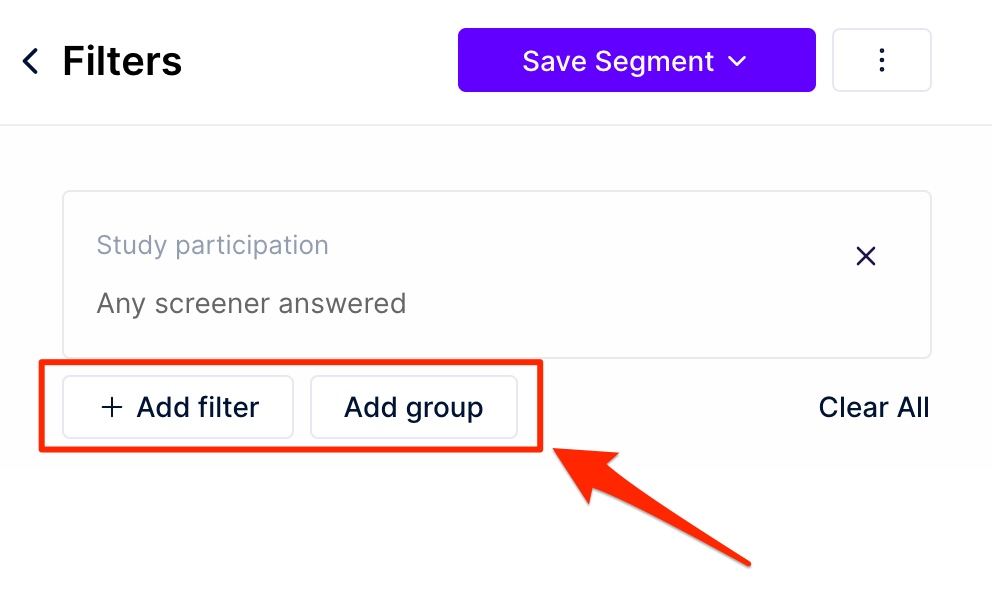
From here, you can either **Add filter** or **Add group**.
<div align="left"><img src="/files/c36199fcbf623333c3f62d4f22c34e5481d4853d" alt="" width="563"></div>

<div align="left"><img src="/files/e0744898123e6ae2d2ce7c6bfd9a9441d8c702cf" alt="" width="563"></div>

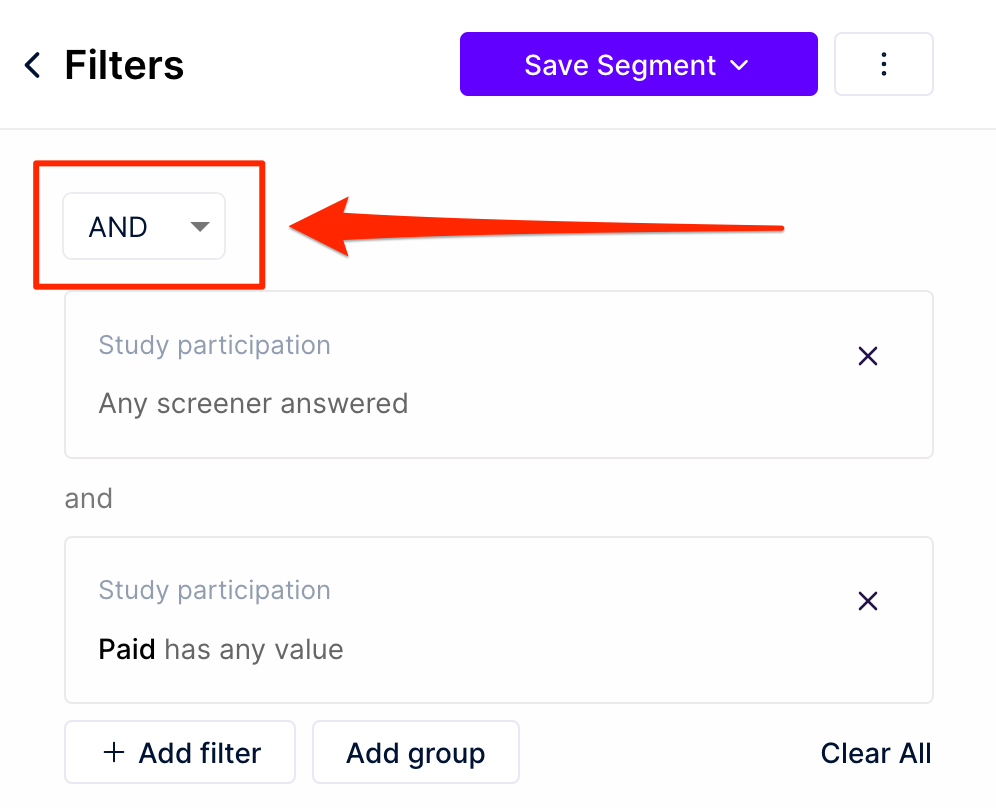
* **Add filter:** You can add individual filters according to study participation, screener participation, answer to screener questions, or panel properties. Multiple filters can be added which can be joined by either an AND or OR operand.
* **Add group:** Combine individual filters using either an AND or OR operand to create one group of filters. The filters you can add in a group are only according to panelist's answers to screener questions. Once created, groups can be treated as individual filters that can be joined with other filters or filter groups by using either an AND or OR operand.
  {% endstep %}

{% step %}
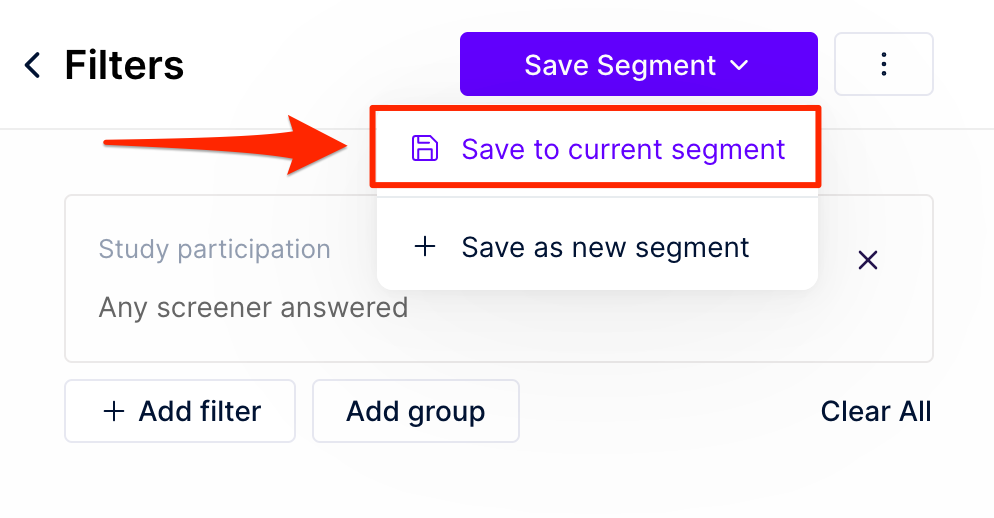
Click **Save Segment** once you've added all of the filters for your custom segment. You can choose to **Save to current segment** or **Save as new segment**.

<div align="left"><img src="/files/a78d6a09a307ee2d6f9a7d220cbd438921a3e400" alt="" width="563"></div>
{% endstep %}
{% endstepper %}

## Deleting custom segments

{% stepper %}
{% step %}
Open the segment to be deleted.
{% endstep %}

{% step %}
Click the **Filters** button.
{% endstep %}

{% step %}
Click the three vertical dots icon from the slide-in panel.
{% endstep %}

{% step %}
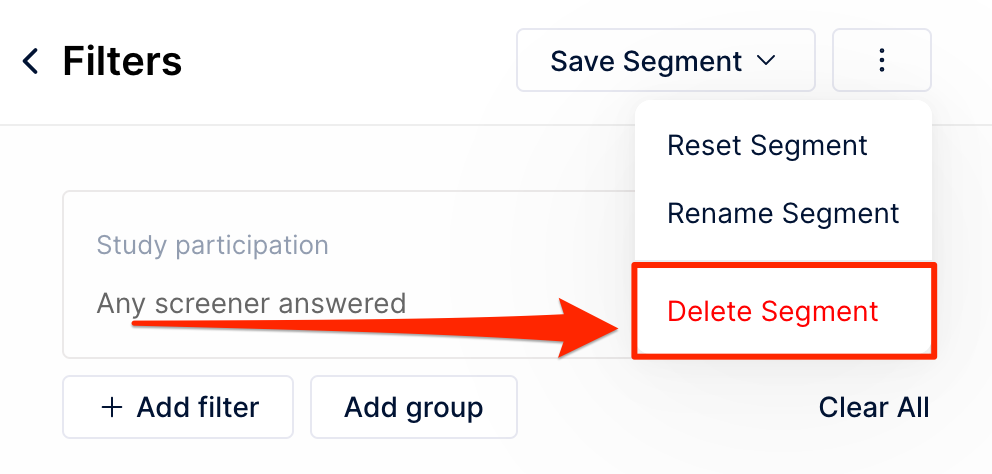
Select **Delete Segment** from the drop-down options.

<div align="left"><img src="/files/672cf32a18675e8f529e64eda3345b24d5a5f692" alt="" width="563"></div>
{% endstep %}
{% endstepper %}

{% hint style="info" %}
**Note:** Private Panels was previously managed outside of Dscout, so you may see a different logo and URL in some places. If you have any questions, contact <support@dscout.com>.
{% endhint %}


---

# Agent Instructions
This documentation is published with GitBook. GitBook is the documentation platform designed so that both humans and AI agents can read, navigate, and reason over technical content effectively. Learn more at gitbook.com.

## Querying This Documentation
If you need additional information that is not directly available in this page, you can query the documentation dynamically by asking a question.

Perform an HTTP GET request on the current page URL with the `ask` query parameter, and the optional `goal` query parameter:

```
GET https://help.dscout.com/private-panels/studies/study-filters-and-segments.md?ask=<question>&goal=<endgoal>
```

`ask` is the immediate question: it should be specific, self-contained, and written in natural language.
`goal` is optional and describes the broader end goal you are ultimately trying to accomplish on behalf of the user. GitBook uses it to tailor the answer towards what is most useful for that goal.

The response will contain a direct answer to the question and relevant excerpts and sources from the documentation.

Use this mechanism when the answer is not explicitly present in the current page, you need clarification or additional context, or you want to retrieve related documentation sections.