> For the complete documentation index, see [llms.txt](https://help.dscout.com/llms.txt). Markdown versions of documentation pages are available by appending `.md` to page URLs; this page is available as [Markdown](https://help.dscout.com/study-basics/question-types/activity-questions/card-sort-questions.md).
# Card sort questions
| Study type | Availability |
|---|
| Usability tests | true |
| Media surveys | true |
| Intercept studies | true |
Card sort questions ask participants to organize a set of cards into categories. This data helps you understand how people mentally group and relate concepts, which makes it valuable for information architecture research, navigation testing, and content organization studies.

When adding a card sort question, you have three options to choose from:
* **Closed:** Participants sort cards into researcher-defined categories only. Best for validating an existing categorical structure.
* **Open:** Participants create their own categories from scratch. Best for discovering how people naturally organize items. (Desktop studies only.)
* **Hybrid card sort:** Researchers provide starting categories, but participants can add their own. Best for iterative refinement when some structure exists but you want to surface gaps. (Desktop studies only.)
Regardless of your choice, participants must sort all cards before submitting their response.
### Card sort question settings
When adding a card sort question to your study, you’ll customize your question in the center of the builder:
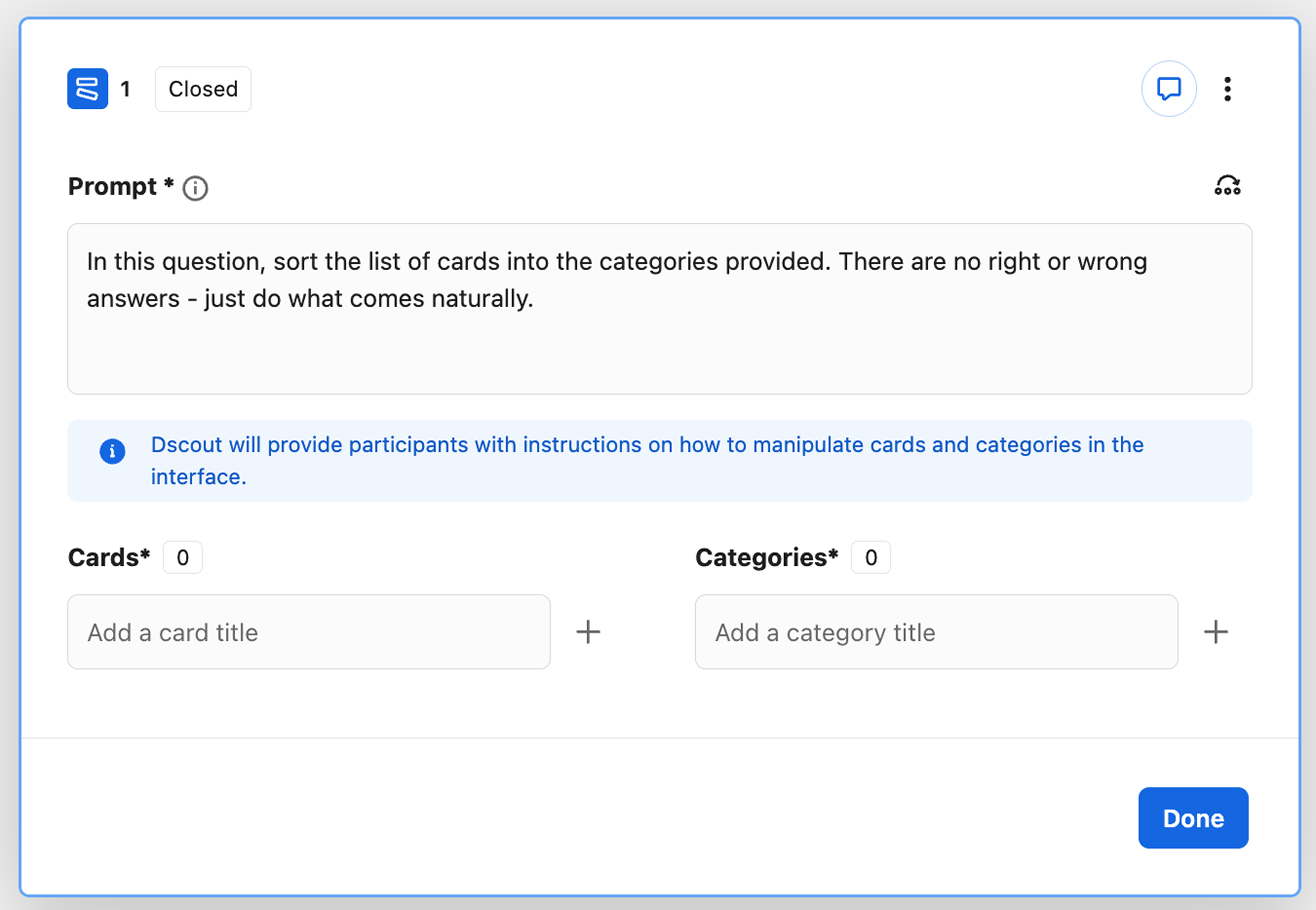 Here's a breakdown of each option:
| Setting | Description |
| -------------- | --------------------------------------------------------------------------------------------------------------------------------------------------------------------------------------------------------------------------------------------------------------------------------------------------------------------------------------------------------------------------------------------------------------------------------------------------------------------------------------------------------------------------------------------------------------------------------------------------- |
| **Prompt** |
Here's a breakdown of each option:
| Setting | Description |
| -------------- | --------------------------------------------------------------------------------------------------------------------------------------------------------------------------------------------------------------------------------------------------------------------------------------------------------------------------------------------------------------------------------------------------------------------------------------------------------------------------------------------------------------------------------------------------------------------------------------------------- |
| **Prompt** | The instructions shown to participants before they begin the card sort. Dscout pre-fills default instructions for each card sort type, and updates them automatically if you switch types until you edit them.
Tip: No need to include instructions on navigating the card sort itself—we'll instruct them automatically.
The individual items participants will sort.
Each question needs at least one card and can have a maximum of 100. Each card has a maximum character limit of 50. Card names must be unique (capitalization is ignored).
Tip: For mobile studies, we recommend a maximum of 15 cards and eight categories.
The groups participants sort cards into. The following limits apply to your selected type of card sort:
- Closed: 2–30 categories.
- Open: No categories (participants will create their own with a maximum of 100 categories).
- Hybrid: 1–30 categories.
Category names you add must be unique (capitalization is ignored). Each category has a maximum character limit of 50.
In hybrid card sorts, the categories you add count toward the 100 categories participants can create.
|
You'll access additional settings for card sort questions in the right sidebar:

Here's a breakdown of each option:
| Setting | Description |
| --------------------------------------------------------------------- | --------------------------------------------------------------------------------------------------------------------------------------------------------------------------------------------------------------------------------------------------------------------------------------------------------------------------------------------------------------------------------------------------------------------------------------------------------------------------------------------------------------------------------------------------------------------------------------------------------------------------------------------------------------------------------------------------------------------------------------------------------------------------------------------------------------------------------------------------------------------------------------------------------------------------------------------------------------------------------------- |
| **Card sort type** | The type of card sort you want participants to complete. Choose from the following options:
- Closed: Participants sort cards into researcher-defined categories only. Best for validating an existing categorical structure.
- Open: Participants create their own categories from scratch. Best for discovering how people naturally organize items. (Desktop studies only.)
- Hybrid card sort: Researchers provide starting categories, but participants can add their own. Best for iterative refinement when some structure exists but you want to surface gaps. (Desktop studies only.)
Open and hybrid card sorts are only available in studies confirmed as desktop. After you add one to your study, you can't change the study's device type. If you switch an existing card sort to Open, any categories you added are removed (Dscout asks you to confirm first).
|
| **Randomize card order** | When enabled, cards are presented in a random order to each participant. |
| **Randomize your category order** (closed and hybrid card sorts only) | When enabled, categories are presented in a random order to each participant. |
{% hint style="info" %}
**Note:** A study can include up to 10 card sort questions.
{% endhint %}
To send participants to a later question after they finish a card sort, add skip logic at the question level. For more information, see [Skip logic](/study-basics/design-a-study/skip-logic-in-usability-tests-media-surveys-and-intercept-studies.md).
### Add a card sort question to a study
You’ll add card sort questions on the **Usability test/Media survey/Study** tab of your study.
{% stepper %}
{% step %}
Navigate to the **Usability test/Media survey/Study** tab of your study.
{% endstep %}
{% step %}
Click **+ Add** in the center of the builder or in the left sidebar.
{% endstep %}
{% step %}
Under **Standard**, select **Card sort**.
{% endstep %}
{% step %}
Enter the **Prompt** (instructions) you want to display to participants before they begin the card sort.
{% endstep %}
{% step %}
Select your **card sort type** in the right sidebar. You can choose **Closed**, **Open**, or **Hybrid**. See the table above for more information.
{% endstep %}
{% step %}
Add your **Cards**.
{% endstep %}
{% step %}
(Closed and hybrid only) Add your **Categories**.
{% endstep %}
{% step %}
(Optional) Enable randomization options in the right sidebar.
{% endstep %}
{% step %}
Click **Done**.
{% endstep %}
{% endstepper %}
Now, you've successfully added a card sort question to your study. When participants reach this question, they'll see your instructions. Then, we'll instruct them on how to complete the card sort activity.
### Analyze a card sort question
From the **Responses** tab of your study, you can view all responses to a card sort question at once or view how each individual participant responded.
{% hint style="info" %}
**Note:** Dscout AI includes card sort responses when it analyzes your study, such as in study-level reports and when answering questions about your data.
{% endhint %}
#### Questions view
From the **Questions** view, you'll see how everyone in your study responded to a card sort question.

Here, you can choose from three views: **Agreement matrix**, **Cards**, and **Categories**.
**Agreement matrix**
Selecting **Agreement matrix** shows every card against every category. Each cell displays the count or percentage of participants who sorted that card into that category. Use this to quickly spot consensus (high agreement) and disagreement across your participant group:

**Cards view**
Selecting **Cards** lets you focus on one card at a time. For each card, you can see which categories it was sorted into, how many participants placed it there, and an agreement rating (the percentage of that card’s placements that landed in that category). Each card also shows an average agreement, which is the average agreement rating across all the categories the card was sorted into. Rows can be sorted by count, percentage, or agreement rating:

**Categories view**
Selecting **Categories** shows one category at a time. This lets you see which cards ended up in each category, along with counts and agreement ratings, which is particularly useful for open and hybrid sorts where categories were created by participants. Each category also shows an average agreement, which is the average agreement rating of all the cards inside it:

#### Merge categories (open and hybrid only)
In open and hybrid card sorts, categories created by participants are auto-merged if they have (case-insensitive) identical names. Merged categories are indicated with the following icon (two lines joining into an arrow):

However, you can also manually merge categories or unmerge categories.
**To manually merge categories:**
{% stepper %}
{% step %}
Select multiple categories on the **Categories** view.
{% endstep %}
{% step %}
Click **Merge categories**. A confirmation modal is displayed.
{% endstep %}
{% step %}
Verify you want to merge the categories displayed.
{% endstep %}
{% step %}
(Optional) Enter a **Merged category name**.
{% endstep %}
{% step %}
Click **Merge x categories**.
{% endstep %}
{% endstepper %}
**To unmerge categories:**
{% stepper %}
{% step %}
Click the Edit (pencil) icon beside a category. The category's details are displayed.
{% endstep %}
{% step %}
Click the **X** beside any categories you want to unmerge.
{% endstep %}
{% step %}
Click **Save**.
{% endstep %}
{% endstepper %}
#### Rename categories
From the **Categories** view, you can also rename categories for easier analysis.
**To rename categories:**
{% stepper %}
{% step %}
Click the Edit (pencil) icon beside a category. The category's details are displayed.
{% endstep %}
{% step %}
Enter a new **Category name**.
{% endstep %}
{% step %}
Click **Save**.
{% endstep %}
{% endstepper %}
#### Participants view
From the **Participants** view, you'll see how individual participants in your study responded to a card sort question.

#### Filter card sort responses
Card sort questions add filters to the filters bar on the **Responses** tab. Use them to focus on participants who sorted their cards a certain way, such as everyone who placed a specific card in a specific category.
#### Export card sort responses
Use the export options on a card sort question to download its results:
* **CSV:** One row per card placement per participant, with these columns: **Question** (only when you export several card sort questions at once), **Participant** (first name and last initial, or a participant ID for participants without a Dscout account), **Card**, **Original Category**, and **Category**. Original Category is where the participant placed the card. Category reflects any merges or renames you've made during analysis. Excluded participants aren't included.
* **PNG:** An image of the question as it appears in analysis.
{% hint style="info" %}
**Note:** In your Entry data export, a card sort question appears only as "completed". To see where participants placed cards, use the card sort CSV.
{% endhint %}
### Frequently asked questions
Can I limit how many categories participants create or how many cards go in each category?
No. In open and hybrid card sorts, participants can create up to 100 categories (in hybrid sorts, your own categories count toward that 100). You can't set a lower limit, require an exact number of categories, or cap how many cards go into a category. If you need a specific structure, use a closed card sort with the categories you want.
Can I ask participants why they sorted cards the way they did?
Card sort questions don't include a built-in follow-up or review step. To collect reasons, add a [typed response](/study-basics/question-types/open-ended-questions/typed-response-questions.md) or [Talk out loud](/study-basics/question-types/open-ended-questions/talk-out-loud-questions.md) question right after the card sort. In usability tests, anything participants say aloud while sorting is also captured in their session recording.
Why is my exported card sort image blank?
Very large card sorts, such as an open sort with hundreds of participant-created categories, can be too big for the browser to turn into an image, so the PNG may come out blank. Merge similar categories to shrink the image, or download the CSV instead.
---
# Agent Instructions
This documentation is published with GitBook. GitBook is the documentation platform designed so that both humans and AI agents can read, navigate, and reason over technical content effectively. Learn more at gitbook.com.
## Querying This Documentation
If you need additional information that is not directly available in this page, you can query the documentation by asking a question.
Perform an HTTP GET request on the following URL with the `ask` and `goal` query parameters:
```
GET https://help.dscout.com/study-basics/question-types/activity-questions/card-sort-questions.md?ask=&goal=
```
`ask` is the immediate question: it should be specific, self-contained, and written in natural language.
`goal` is what the user is ultimately trying to achieve, the reason they need the answer. Sharing it helps GitBook give you a better, more relevant answer. A goal is most helpful when it describes the outcome the user wants rather than restating the question. For example, with `ask=how do I create an API token`, a goal like `automate deployments from our CI pipeline` lets GitBook tailor the answer to that use case.
The response will contain a direct answer to the question and relevant excerpts and sources from the documentation.
Use this mechanism when the answer is not explicitly present in the current page, you need clarification or additional context, or you want to retrieve related documentation sections.