> For the complete documentation index, see [llms.txt](https://help.dscout.com/llms.txt). Markdown versions of documentation pages are available by appending `.md` to page URLs; this page is available as [Markdown](https://help.dscout.com/study-basics/question-types/activity-questions/tree-testing-questions.md).
# Tree testing questions
| Study type | Availability |
|---|
| Usability test | true |
| Media survey | true |
| Intercept study | true |
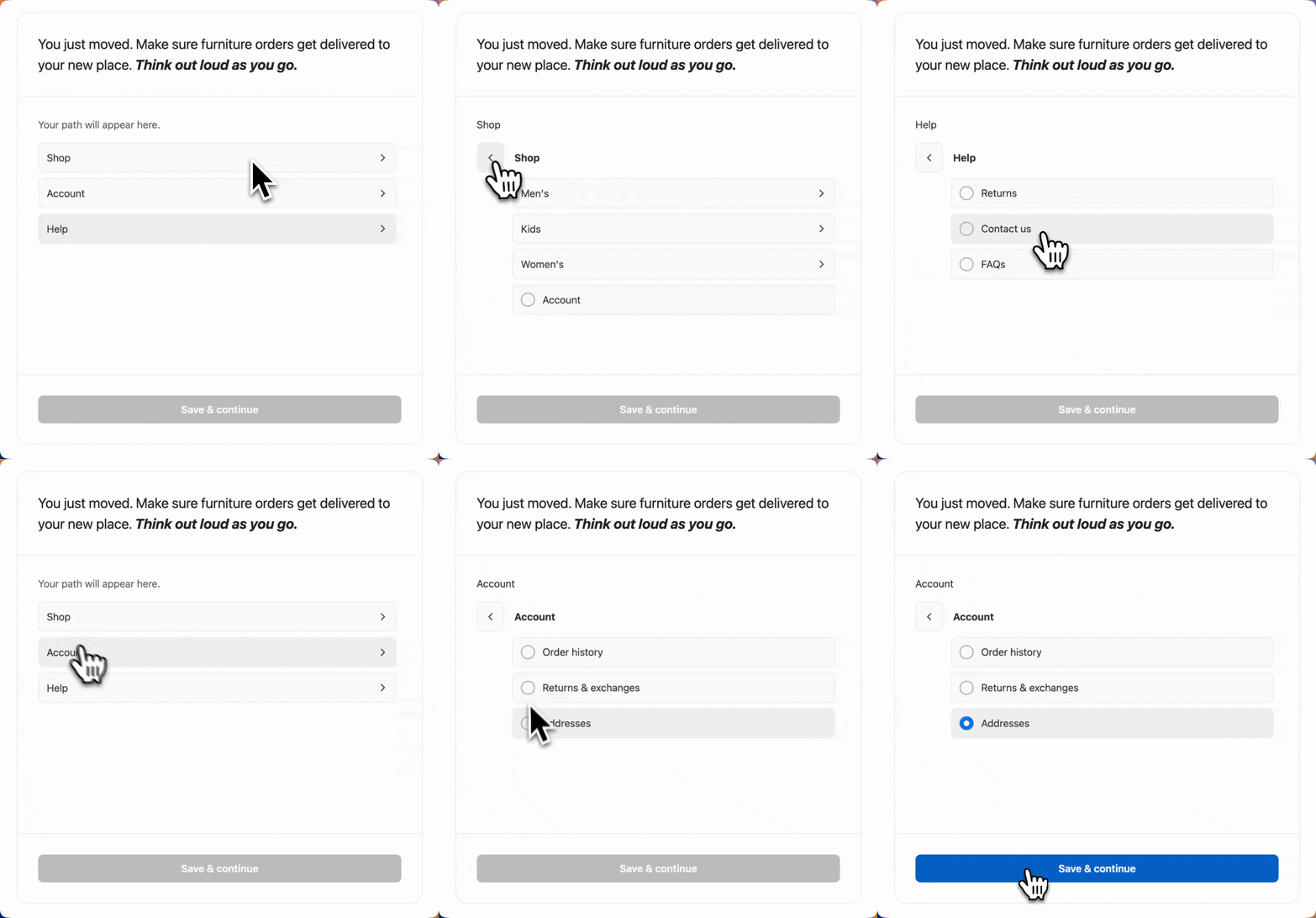
Tree testing questions let you discover how participants would work through a navigational structure to complete a desired objective or task. Let’s say you run an online clothing store and want to make sure certain articles of clothing can be found where your users expect them to be. Or maybe you’re developing a new music app and are unsure about the information architecture. With tree testing questions, you can find exactly what works for your users.
 ### Tree testing settings
When adding a tree testing question to your study, you’ll customize your question in the center of the builder:
### Tree testing settings
When adding a tree testing question to your study, you’ll customize your question in the center of the builder:
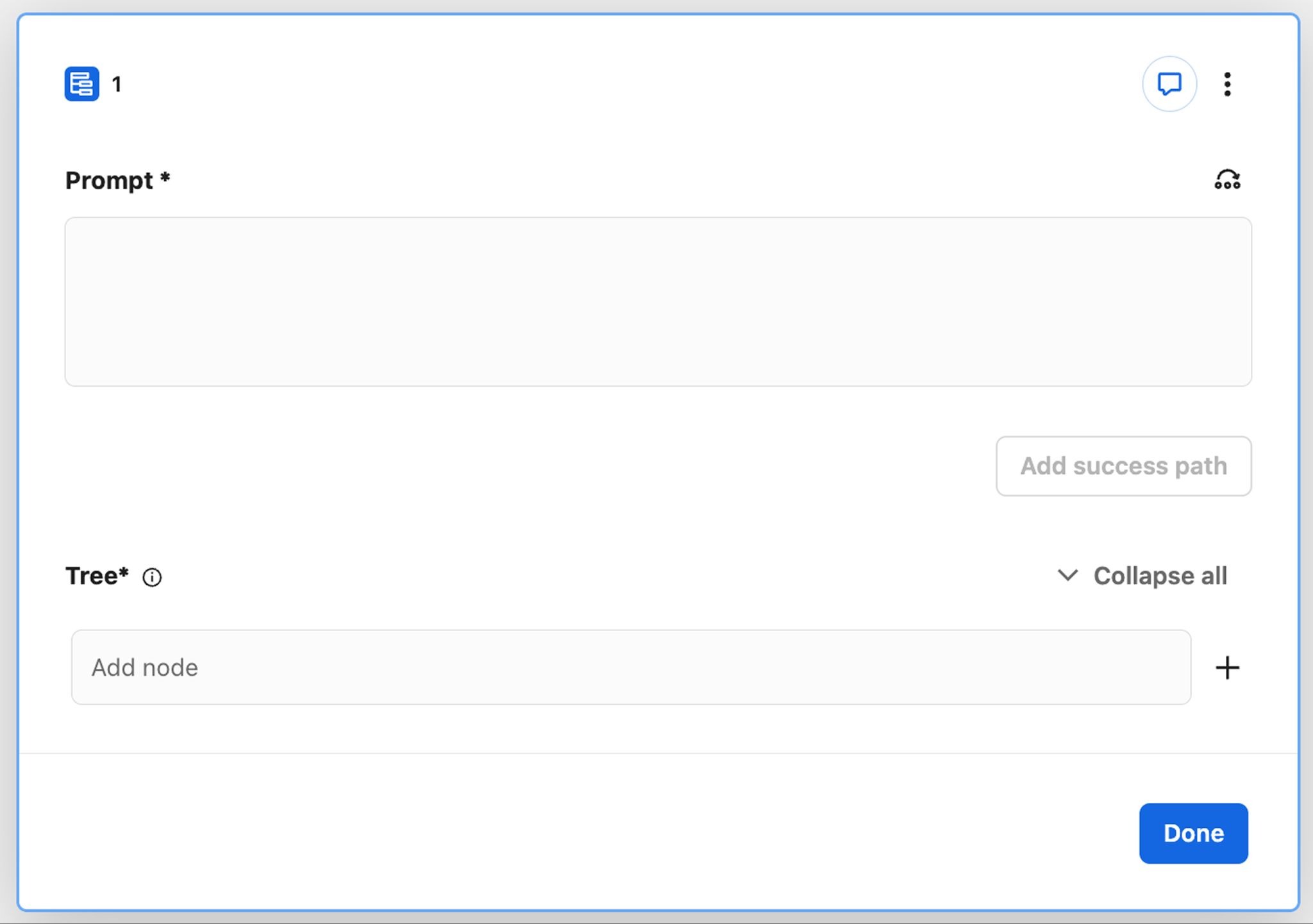 Here’s a breakdown of each option:
| Setting | Description |
| ------------------------------- | ------------------------------------------------------------------------------------------------------------------------------------------------------------------------------------------------------------------------------------------------------------------------------------------------------------------------------------------------------------------------------------------------------------------------------------------------------------------------------------------------------------------------------------------------------------------------------------------------------------------------------------------------------------------------------------------------------------------------------------------------------------------------------------------------------------------------------------------------------------------------------------------ |
| **Prompt** |
Here’s a breakdown of each option:
| Setting | Description |
| ------------------------------- | ------------------------------------------------------------------------------------------------------------------------------------------------------------------------------------------------------------------------------------------------------------------------------------------------------------------------------------------------------------------------------------------------------------------------------------------------------------------------------------------------------------------------------------------------------------------------------------------------------------------------------------------------------------------------------------------------------------------------------------------------------------------------------------------------------------------------------------------------------------------------------------------ |
| **Prompt** | The prompt or instructions participants see as part of this question. Here, a clear objective you want participants to complete using your provided tree structure. For example, “Show me how you would go about finding rain boots for the upcoming season.” Or “You’ve recently changed jobs and want to update your address. Where would you go to do that?”
You can format your text in the following ways:
- bold = bold
- italic = italic
- <[https://examplelink.com>](https://help.dscout.com/study-basics/question-types/activity-questions/https:/examplelink.com>) =
- Sample link = Sample link
|
| **Add success path** (optional) | The path you hope participants will take when completing the provided task. Including a success path lets you validate whether any structure you already have in place is working or whether it might need adjusting to meet users’ expectations. Only nodes without child nodes can be success paths. For more information, see Add a success path to a tree testing question.
Tip: If you have more than one possible success path in mind, you can select up to two. They don’t need to end on the same node.
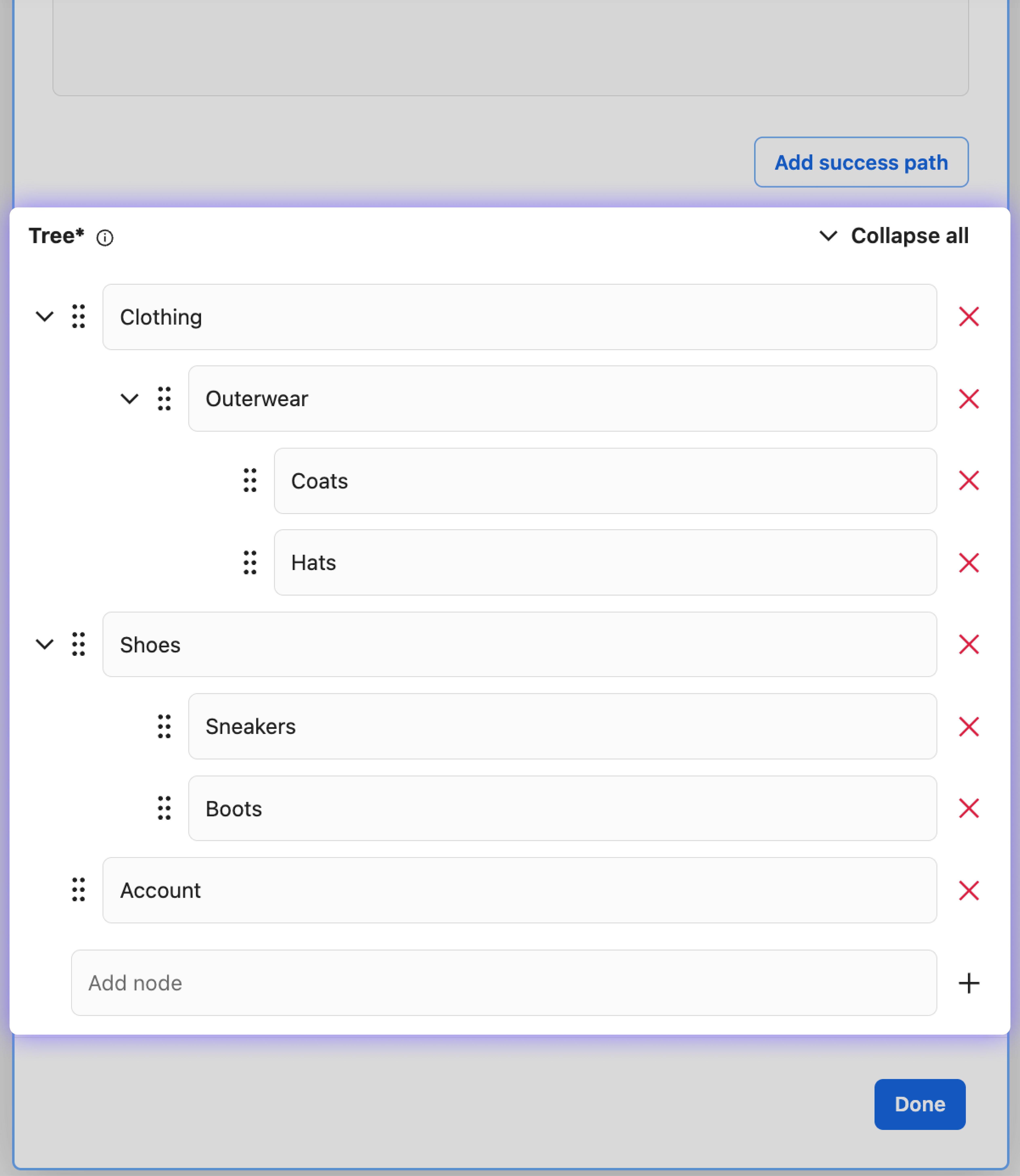
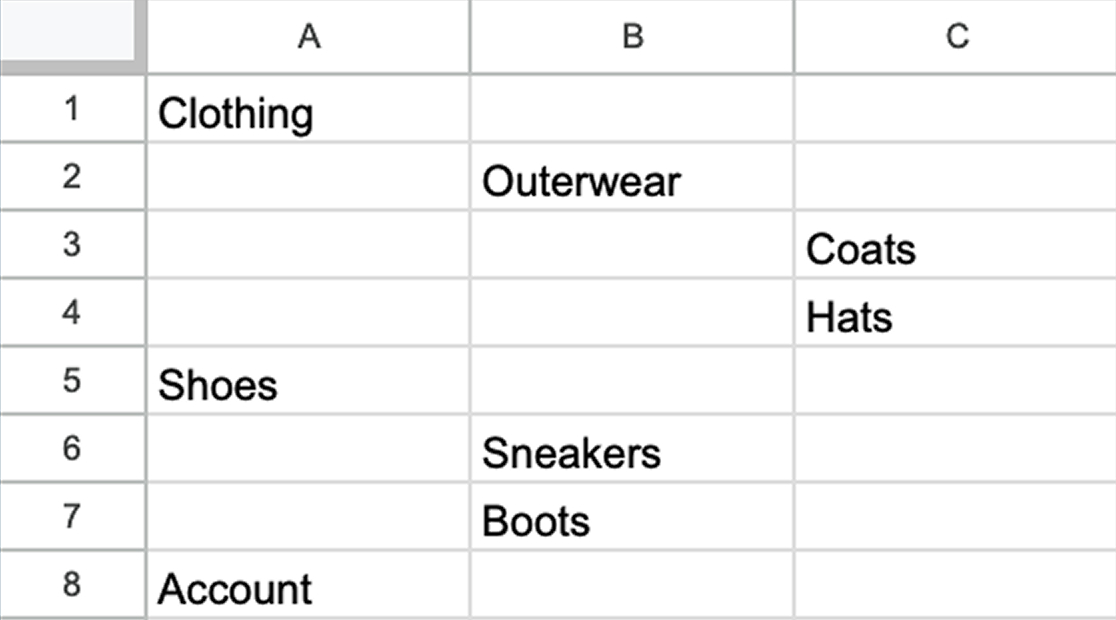 Pasting this example into Dscout results in the following tree structure:
 #### Rearrange a tree structure
Once you've added your nodes, you can drag and drop them to rearrange your tree structure:
#### Rearrange a tree structure
Once you've added your nodes, you can drag and drop them to rearrange your tree structure:
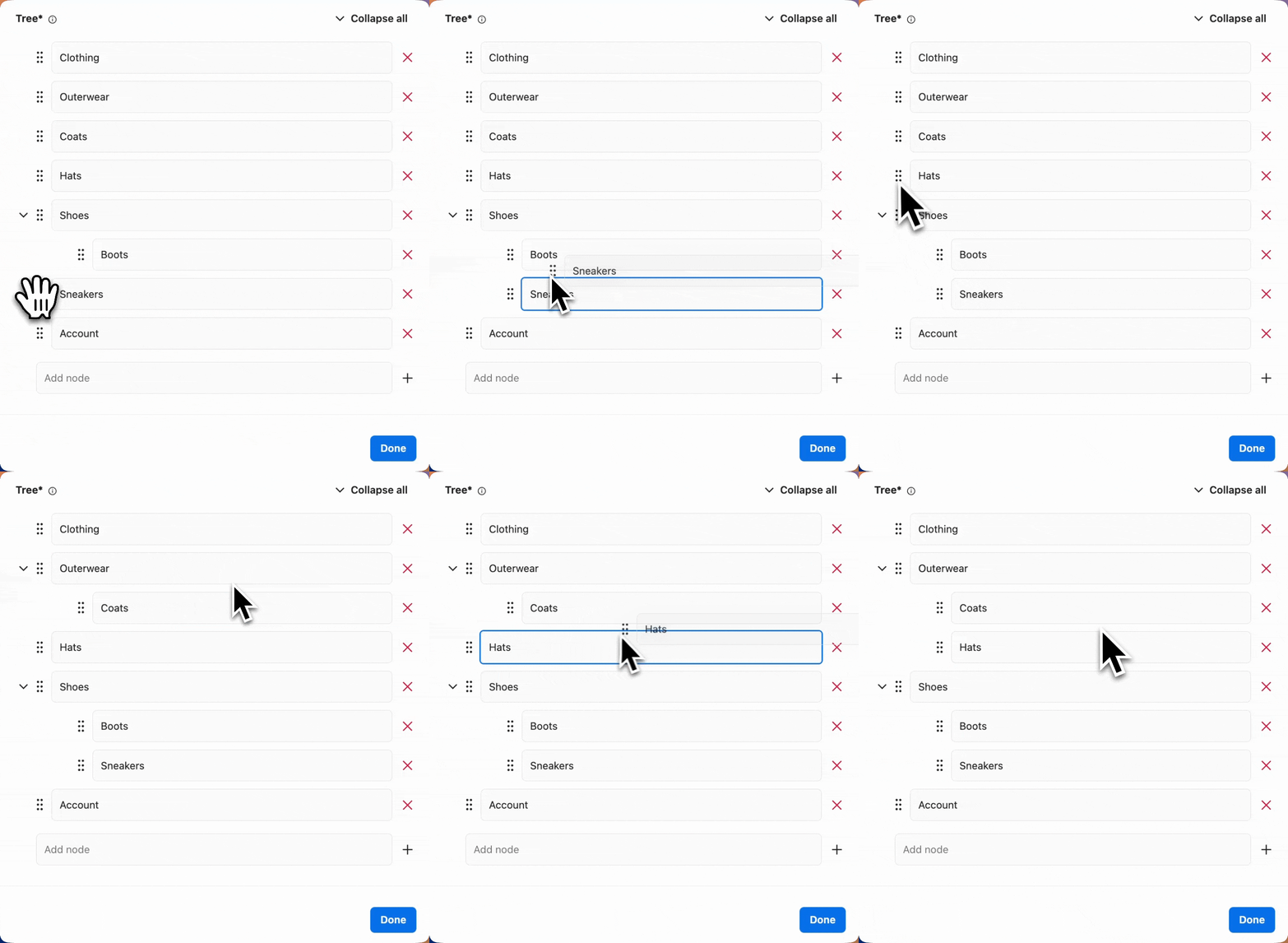 To delete a node, use its remove option. Dscout asks you to confirm because deleting a node also deletes all of its child nodes, and this can't be undone.
#### Add a success path to a tree testing question
If you have an ideal navigation path in mind, you can set that as a success path in Dscout to unlock additional insights during analysis. For example, with a set success path, you can view whether a participant took a direct route or an indirect route in their response.
{% stepper %}
{% step %}
After adding your tree structure, click **Add success path**. A success path modal is displayed with your entered tree structure.

{% endstep %}
{% step %}
Select the node that counts as success if the participant submits it. Only nodes without child nodes can be selected.
{% hint style="success" %}
**Tip:** If there are multiple possible success paths, you can select up to two nodes in this modal. They don’t need to end on the same node. Your selected success paths are displayed to the left of the tree structure.
{% endhint %}

{% endstep %}
{% step %}
Click **Save**.
{% endstep %}
{% endstepper %}
Now, your success path is set. You’ll be able to compare participant responses to this path during analysis. If you later add a child node to a success path node, that success path is removed.
### Edit a tree testing question
You can edit questions however you need prior to launching your study. However, if you want to edit a question after your study is launched, some changes will affect how your data appears in analysis. For example, removing a node from your tree entirely will split your data into two versions you'll need to analyze separately.
Here's a breakdown of which changes will and won't create a new version of your tree testing question's data:
| Won't cause versioning | Will cause versioning |
| ------------------------------------------------------------------------------------------------------------------------------------------------------------------------------------------------ | -------------------------------------------------------------------------------------------------------------------------------------- |
|
To delete a node, use its remove option. Dscout asks you to confirm because deleting a node also deletes all of its child nodes, and this can't be undone.
#### Add a success path to a tree testing question
If you have an ideal navigation path in mind, you can set that as a success path in Dscout to unlock additional insights during analysis. For example, with a set success path, you can view whether a participant took a direct route or an indirect route in their response.
{% stepper %}
{% step %}
After adding your tree structure, click **Add success path**. A success path modal is displayed with your entered tree structure.

{% endstep %}
{% step %}
Select the node that counts as success if the participant submits it. Only nodes without child nodes can be selected.
{% hint style="success" %}
**Tip:** If there are multiple possible success paths, you can select up to two nodes in this modal. They don’t need to end on the same node. Your selected success paths are displayed to the left of the tree structure.
{% endhint %}

{% endstep %}
{% step %}
Click **Save**.
{% endstep %}
{% endstepper %}
Now, your success path is set. You’ll be able to compare participant responses to this path during analysis. If you later add a child node to a success path node, that success path is removed.
### Edit a tree testing question
You can edit questions however you need prior to launching your study. However, if you want to edit a question after your study is launched, some changes will affect how your data appears in analysis. For example, removing a node from your tree entirely will split your data into two versions you'll need to analyze separately.
Here's a breakdown of which changes will and won't create a new version of your tree testing question's data:
| Won't cause versioning | Will cause versioning |
| ------------------------------------------------------------------------------------------------------------------------------------------------------------------------------------------------ | -------------------------------------------------------------------------------------------------------------------------------------- |
| - Editing a node's label.
- Adding, updating, or removing a success path.
- Rearranging node positions under the same parent (without moving nodes to a new parent).
| - Adding a new node.
- Removing a node.
- Moving a node to a different parent/level in the tree structure.
|
For more information on editing your study post-launch, see [Edit a launched screener or study](/study-basics/edit-close-or-relaunch-studies/edit-a-launched-screener-or-study.md).
### Analyze a tree testing question
From the **Responses** tab of your study, you can see how all of your participants completed the given objective overall or narrow your view to individual participant responses.
{% hint style="info" %}
**Note:** Dscout AI includes tree testing responses, such as when you ask questions about your study's data.
{% endhint %}
#### Questions view
The **Questions** view gives you an overview of all responses to a given tree testing question, including metrics on the directness of participant selections, average time on task, and more.

Here’s a breakdown of each metric:
| Metric | Description |
| ---------------------------------------------------------------- | --------------------------------------------------------------------------------------------------------------------------------------------------------------------------------------------------------------------------------------------------------------------------------------------------------------------------------------------------------------------------------------------------------------------------------------------------------------------------------------------------------------------------------------------------------- |
| **Success rate** (questions with success path only) | The percentage of participants who selected your designated success path.
If you have more than one possible success path, you’ll also see the percentage of participants who selected each individual path.
|
| **Most common submission** (questions without success path only) | The final node in your tree structure most commonly selected by participants. |
| **Directness of success** (questions with success path only) | Of the participants who reached your designated success path, the percentage who got there with no backward navigation in your tree structure.
If you have more than one possible success path, this metric is called Overall directness of success, and you’ll also see the percentage of participants who directly navigated to each individual path.
|
| **Directness** (questions without success path only) | The percentage of participants who selected their path with no backward navigation in your tree structure. |
| **Average time on task** | The average time from when participants start the question to when they submit their response.
If your question has a success path, you’ll also see the average time of all participants who submitted this success path as their final response.
Note: If your question has multiple success paths, you’ll see an Overall average time on task as well as individual breakdowns for each success path.
The node of your tree structure participants most often clicked first when completing the given task.
If your question has a success path, you’ll also see the node most commonly selected by participants who submitted this success path as their final response.
|
You can also use the tabs below these metrics to open additional views. Depending on the view, you can sort results by count, percentage, clicks, time, or success. See the sections below for more information.
**Participant data**
Displays at-a-glance metrics for each participant’s response, including:
* **Success:** Whether the participant selected one of your designated success paths. This is only displayed if you selected a success path while building.
* **Time:** The amount of time the participant spent making their selection.
* **Clicks:** The number of clicks the participant took prior to submitting their selection.
* **First click:** The first node the participant selected while completing the task.
* **Submission:** The final node submitted by the participant.

**Submitted nodes**
Displays a list of every selected node as well as the percentage of participants who selected it.

**Common paths**
Displays the most frequently selected paths as well as the percentage of participants that selected them.
**Start** in a path refers to the place participants begin the task, before making a selection. You'll see this in the path any time a participant navigated back to this starting point. ← indicates backward navigation.

**Participant paths**
Displays the path selected by each individual participant.
**Start** in a path refers to the place participants begin the task, before making a selection. You'll see this in the path any time a participant navigated back to this starting point. ← indicates backward navigation.

**First clicks**
Displays every node that was selected first by at least one participant as well as the total number of participants who selected the node first.

#### Participants view
The **Participants** view gives you a closer look at individual participant responses to a tree testing question, including their submitted node, the path they took to get there, and more.

Here’s a breakdown of each metric:
| Metric | Description |
| ------------------ | -------------------------------------------------------------------------------------------------------------------------------------------------------------------------------------------------------------------------------------------------------------------------------------------------------------------------------------------------------------------------------------------------------------------------------------------------------------------------------------------------------------------------------------------------------------------------------------------------------------------------------------------------------------------------------------------------------------------------------------------------------------------------------------------------------------------------------------------------------------------------------------------------------------------------------------------------------------------------------------------------------------------------------------------------------------------------------------------------------------------------------------------------------------------------------------------------------------------------------------- |
| **Submitted node** | The final node selected by the participant. Above the node, you’ll see a colored indicator stating whether their path to this selection was direct or indirect.
If your question includes a success path, you’ll see one of the following:
- Direct success: The participant selected the correct node and only moved forward through your tree structure.
- Indirect success: The participant selected the correct node but moved forward and backward in your tree structure.
- Direct fail: The participant did not select the correct node and only moved forward through your tree structure.
- Indirect fail: The participant did not select the correct node and moved forward and backward in your tree structure.
If your question does not include a success path, you’ll see one of the following:
- Direct: The participant only moved forward through your tree structure before making their final selection.
- Indirect: The participant moved forward and backward through your tree structure before making their final selection.
|
| **Path** | The series of nodes the participant clicked to get to their final submission. Arrows between nodes indicate where the participant moved forward or backward in your tree structure.
Note: Start in a path refers to the place participants begin the task, before making a selection. You'll see this in the path any time a participant navigated back to this starting point. ← indicates backward navigation.
Can I set more than one success path?
Yes. You can select up to two success paths in the success path modal, and they don't need to end on the same node. In analysis, you'll see an overall success rate as well as the rate for each individual path.
Can participants submit a node that has child nodes?
No. Participants can only submit a node that has no child nodes. Selecting a node with child nodes opens the next level of the tree. Make sure every answer you want participants to be able to choose sits at the end of a branch.
What happens to my success path if I add child nodes to it?
It's removed. Only nodes without child nodes can be success paths, so if you add a child node under a success path node, Dscout removes that success path. After you finish editing your tree, add a new success path.
Why is some of my tree testing data missing in test mode?
Dscout doesn't run the full analysis processing on test submissions, so some tree testing results, such as clicks, time on task, first clicks, paths, and success outcomes, can be blank or incomplete for a test submission. Launch your study to see complete results from real participants.
---
# Agent Instructions
This documentation is published with GitBook. GitBook is the documentation platform designed so that both humans and AI agents can read, navigate, and reason over technical content effectively. Learn more at gitbook.com.
## Querying This Documentation
If you need additional information that is not directly available in this page, you can query the documentation by asking a question.
Perform an HTTP GET request on the following URL with the `ask` and `goal` query parameters:
```
GET https://help.dscout.com/study-basics/question-types/activity-questions/tree-testing-questions.md?ask=&goal=
```
`ask` is the immediate question: it should be specific, self-contained, and written in natural language.
`goal` is what the user is ultimately trying to achieve, the reason they need the answer. Sharing it helps GitBook give you a better, more relevant answer. A goal is most helpful when it describes the outcome the user wants rather than restating the question. For example, with `ask=how do I create an API token`, a goal like `automate deployments from our CI pipeline` lets GitBook tailor the answer to that use case.
The response will contain a direct answer to the question and relevant excerpts and sources from the documentation.
Use this mechanism when the answer is not explicitly present in the current page, you need clarification or additional context, or you want to retrieve related documentation sections.