> For the complete documentation index, see [llms.txt](https://help.dscout.com/llms.txt). Markdown versions of documentation pages are available by appending `.md` to page URLs; this page is available as [Markdown](https://help.dscout.com/study-basics/study-templates/create-a-template.md).
# Create a template
{% hint style="info" %}
This article discusses templates for screeners, usability tests, media surveys, intercept studies, and AI moderated studies. For information on templates in diary studies, see [Diary study templates](/diary-studies/what-are-diary-studies-in-dscout/diary-templates-overview.md).
{% endhint %}
You can create a template from scratch, or from an existing screener or study.
{% hint style="info" %}
Only **Account Owners**, **Admins**, and **Editors** can create new templates. **Collaborators** can use templates to build new screeners and studies, but can't create new templates. For more information, see [User roles and permissions](/getting-started/dscout-quickstart-guide/user-roles-and-permissions.md).
{% endhint %}
### Create a template from scratch
In the template library, click **Create a template**, then choose what it should hold: a **screener**, a **study**, or both (**study with screener**). Each option opens a short, guided flow.
{% hint style="info" %}
On the first screen of each flow, you can also click **Duplicate an existing template** to start from a template you already have instead of a blank one.
{% endhint %}
{% tabs %}
{% tab title="Screener" %}
{% stepper %}
{% step %}
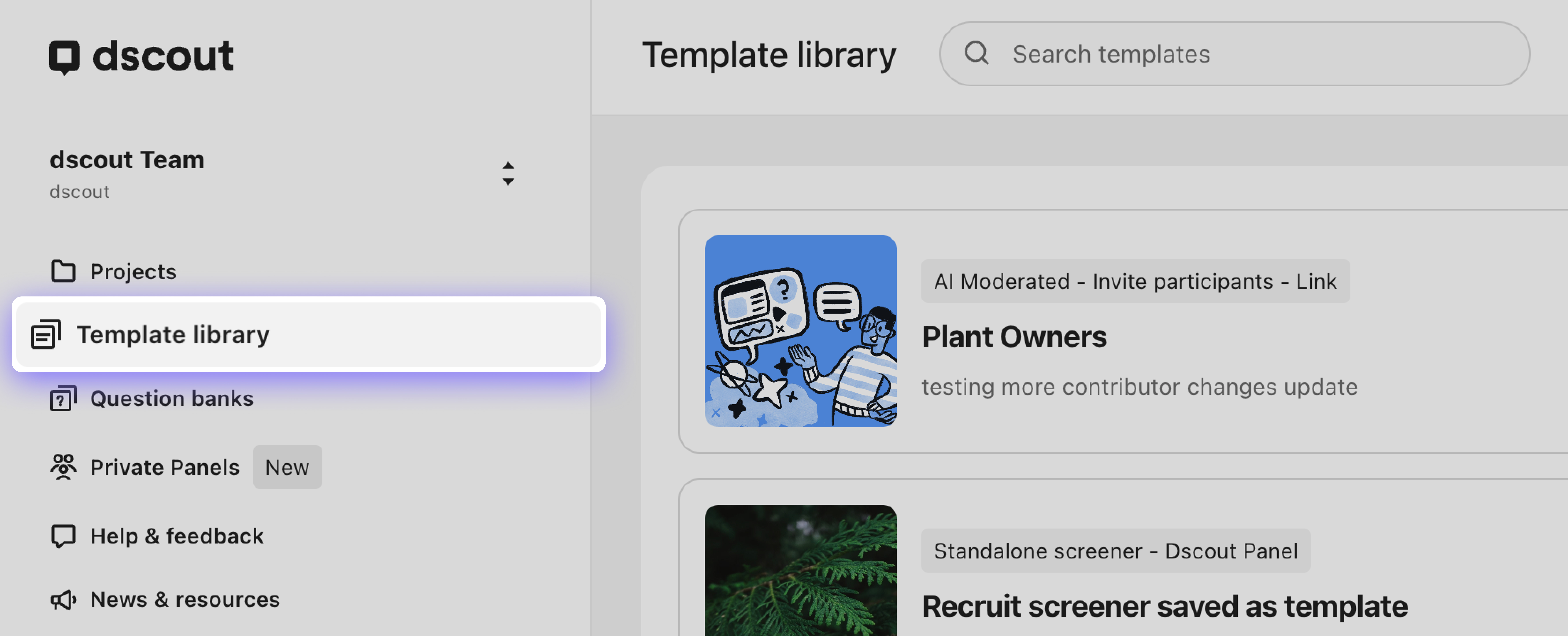
Select **Template library** in the left navigation sidebar.
{% endstep %}
{% step %}
Click **Create a template**, then select **Screener**.
{% endstep %}
{% step %}
Choose a **screener type** and a **participant source**:
**Auto-recruit screeners** must be paired with a study and can automatically fill your study from the following sources:
* **Dscout's Scout Panel**.
* **Dscout's Partner Panels**.
**Standalone screeners** run independently, without being attached to a study, and let you review applicants and handpick who moves forward from the following sources:
* **Dscout's Scout Panel**.
* **Dscout's Partner Panels**.
* **Invite your own participants**.
Then, click **Next**.
{% endstep %}
{% step %}
On **Choose a template type**, select **Standard**, then click **Next**.
{% hint style="info" %}
**Note: Smart** templates are coming soon for use with Dscout AI. For more information, contact your Dscout Account Director.
{% endhint %}
{% endstep %}
{% step %}
(Auto-recruit from the Dscout Panel only) Choose a **target country**. Click **Next**.
{% endstep %}
{% step %}
Give your template a name, then click **Create template** (or **Skip for now**). Your template opens in the builder.
{% endstep %}
{% step %}
Add your screener questions and targeting attributes. Then, click **Save template...** A confirmation modal is displayed.
{% endstep %}
{% step %}
Confirm or enter a template **name** and **description**. Then, select a save location:
* **Workspace:** Available only in your selected workspace.
* **Account:** Available in all workspaces across your overall Dscout account.
{% endstep %}
{% step %}
Click **Save template**.
{% endstep %}
{% endstepper %}
Now, your template is saved to the template library. Here, you and your colleagues can use it to build new screeners. For more information, see [Build from a template](/study-basics/study-templates/build-from-a-template.md).
{% endtab %}
{% tab title="Study" %}
{% stepper %}
{% step %}
Select **Template library** in the left navigation sidebar.
{% endstep %}
{% step %}
Click **Create a template**, then select **Study**.
{% endstep %}
{% step %}
Choose a study type: **usability test**, **media survey**, or **AI moderated study** (if enabled). Then, click **Next**.
{% hint style="info" %}
To build an intercept study template, select **Study with screener** instead.
{% endhint %}
{% endstep %}
{% step %}
On **Choose a template type**, select **Standard**, then click **Next**.
{% hint style="info" %}
**Note: Smart** templates are coming soon for use with Dscout AI. For more information, contact your Dscout Account Director.
{% endhint %}
{% endstep %}
{% step %}
Choose a device: **Desktop**, **Mobile**, or **Choose during study setup** (which lets you choose a device type when building a study from the template). Then, click **Next**.
{% hint style="info" %}
**Note:** If you select **Choose during study setup**, you won't be able to preview this template, any card sort question you add can only use the **Closed** sort type, and the study's Chrome extension setting is locked.
When building from this template, you'll be prompted to select a device type. These settings will then reflect the options normally available for that device type.
{% endhint %}
{% endstep %}
{% step %}
(If applicable) Under **What do you want to test?**, select all that apply: **Prototype** (Figma or other), **Website** (or web app), **App** (native iOS or Android). Click **Next**. For more information, see [Recording options in a usability test](/usability-tests/what-are-usability-tests-in-dscout/device-and-recording-options-in-a-usability-test.md).
{% endstep %}
{% step %}
(If applicable) Choose a recording option: **Screen and camera** or **Screen only**. Click **Next**.
{% endstep %}
{% step %}
Give your template a name, then click **Create template** (or **Skip for now**). Your template opens in the builder.
{% endstep %}
{% step %}
Customize your study settings on the **Overview** tab and add your study questions on the **Study** tab (Usability test, Media survey, or AI moderator). Then, click **Save template...** A confirmation modal is displayed.
{% endstep %}
{% step %}
Confirm or enter a template **name** and **description**. Then, select a save location:
* **Workspace:** Available only in your selected workspace.
* **Account:** Available in all workspaces across your overall Dscout account.
{% endstep %}
{% step %}
Click **Save template**.
{% endstep %}
{% endstepper %}
Now, your template is saved to the template library. Here, you and your colleagues can use it to build new studies. For more information, see [Build from a template](/study-basics/study-templates/build-from-a-template.md).
{% endtab %}
{% tab title="Study with screener" %}
{% stepper %}
{% step %}
Select **Template library** in the left navigation sidebar.
{% endstep %}
{% step %}
Click **Create a template**, then select **Study with screener**.
{% endstep %}
{% step %}
Choose a study type: **usability test**, **media survey**, **intercept study**, or **AI moderated study** (if enabled). Then, click **Next**.
{% endstep %}
{% step %}
(All except intercept studies) Choose a **recruiting approach**:
* **Auto-recruit from the Dscout Panel:** Automatically fill your study with applicants from the Dscout Scout Panel.
* **Auto-recruit from Dscout's Partner Panels:** Automatically fill your study with applicants from the Dscout's Partner Panels.
* **Recruit from standalone screeners:** Manually add participants from an existing Dscout screener.
* **Invite your own participants:** Generate a share link or invite participants from Private Panels.
{% hint style="info" %}
**Note: Recruit from standalone screeners** and **Invite your own participants** will not include a screener directly in your template, but they will require this recruiting approach when this template is used.
{% endhint %}
Then, click **Next**.
{% endstep %}
{% step %}
On **Choose a template type**, select **Standard**, then click **Next**.
{% hint style="info" %}
**Note: Smart** templates are coming soon for use with Dscout AI. For more information, contact your Dscout Account Director.
{% endhint %}
{% endstep %}
{% step %}
(If applicable) Choose a **target country**. Then, click **Next**.
{% endstep %}
{% step %}
(If applicable) Choose a device: **Desktop**, **Mobile**, or **Choose during study setup**. Click **Next**.
{% hint style="info" %}
**Note:** If you select **Choose during study setup**, you won't be able to preview this template, any card sort question you add can only use the **Closed** sort type, and the screener's Chrome extension setting is locked.
When building from this template, you'll be prompted to select a device type. These settings will then reflect the options normally available for that device type.
{% endhint %}
{% endstep %}
{% step %}
(If applicable) Under **What do you want to test?**, select all that apply: **Prototype**, **Website**, **App**. Click **Next**.
{% endstep %}
{% step %}
(If applicable) Choose a recording option: **Screen and camera** or **Screen only**. Click **Next**.
{% endstep %}
{% step %}
Give your template a name, then click **Create template** (or **Skip for now**). Your study opens in the builder.
{% endstep %}
{% step %}
Customize your study settings on the **Overview** tab and add your study questions on the **Study** tab (Usability test, Media survey, or AI moderator). Then, click **Save template...** A confirmation modal is displayed.
{% endstep %}
{% step %}
Confirm or enter a template **name** and **description**. Then, select a save location:
* **Workspace:** Available only in your selected workspace.
* **Account:** Available in all workspaces across your overall Dscout account.
{% endstep %}
{% step %}
Click **Save template**.
{% endstep %}
{% endstepper %}
Now, your template is saved to the template library. Here, you and your colleagues can use it to build new studies. For more information, see [Build from a template](/study-basics/study-templates/build-from-a-template.md).
{% endtab %}
{% endtabs %}
### Create a template from an existing screener or study
If you have a screener or study you want to reuse or share with your team, you can save it as a template. Templates are then available from the template library or when creating a new study.
{% hint style="info" %}
**Note:** A screener or study must be in **Drafting** or **Closed** status to be saved as a template. You can't save a study that's currently launched.
{% endhint %}
{% stepper %}
{% step %}
In the screener or study you want to save, click the **More actions** icon in the top right corner.
{% endstep %}
{% step %}
Select **Save as template**.
{% endstep %}
{% step %}
Enter a template **name** and **description**. Then, select a save location:
* **Workspace:** Available only in your selected workspace.
* **Account:** Available in all workspaces across your overall Dscout account.
{% endstep %}
{% step %}
Click **Save template**.
{% endstep %}
{% endstepper %}
Now, the template is saved to your template library and available to you and your collaborators when creating new screeners or studies.
{% hint style="info" %}
**Note:** You can also save a screener or study as a template from its card on the project details page. Click the **Options** icon on the card, then select **Save as template**.
{% endhint %}
---
# Agent Instructions
This documentation is published with GitBook. GitBook is the documentation platform designed so that both humans and AI agents can read, navigate, and reason over technical content effectively. Learn more at gitbook.com.
## Querying This Documentation
If you need additional information that is not directly available in this page, you can query the documentation by asking a question.
Perform an HTTP GET request on the following URL with the `ask` and `goal` query parameters:
```
GET https://help.dscout.com/study-basics/study-templates/create-a-template.md?ask=&goal=
```
`ask` is the immediate question: it should be specific, self-contained, and written in natural language.
`goal` is what the user is ultimately trying to achieve, the reason they need the answer. Sharing it helps GitBook give you a better, more relevant answer. A goal is most helpful when it describes the outcome the user wants rather than restating the question. For example, with `ask=how do I create an API token`, a goal like `automate deployments from our CI pipeline` lets GitBook tailor the answer to that use case.
The response will contain a direct answer to the question and relevant excerpts and sources from the documentation.
Use this mechanism when the answer is not explicitly present in the current page, you need clarification or additional context, or you want to retrieve related documentation sections.
.jpg?alt=media&token=0524b11d-6cc2-4c78-acc2-fa8261337bcc)
.jpg?alt=media&token=a2efd563-b2f5-4cbd-8223-fb22c0e1e87f)
.jpg?alt=media&token=0c540af5-853e-4835-bdd8-c8f76e86469c)
.jpg?alt=media&token=e2371da9-27ac-446a-8a41-70763cf13ac3)
.jpg?alt=media&token=b32e6352-3aa5-4887-9bb4-b96a4e2291b6)
.jpg?alt=media&token=bde3b513-dbe0-468a-97a3-c9368b18d21c)
.jpg?alt=media&token=396522c5-d803-41ae-8458-ce11030b3597)
.jpg?alt=media&token=13edf550-e4d9-48ca-b662-3789aa670a4d)
.jpg?alt=media&token=28500753-bef9-4483-8d44-aa6f834da7e0)
.png?alt=media&token=814017c7-c60a-4407-b5b4-89b8c644e818)
.jpg?alt=media&token=97646d74-2f87-4123-a467-b691b67365ef)