> For the complete documentation index, see [llms.txt](https://help.dscout.com/llms.txt). Markdown versions of documentation pages are available by appending `.md` to page URLs; this page is available as [Markdown](https://help.dscout.com/usability-tests/manage-a-usability-test/launch-a-usability-test.md).
# Launch a usability test
When you’re ready to open your study to participants, you’ll launch it from the builder.
{% hint style="info" %}
**Note:** In some cases, you’ll be required to have your study reviewed by a Dscout Research Advisor before you can launch it. For more information, see the Pre-launch review section at the end of this article.
{% endhint %}
{% stepper %}
{% step %}
Open your study in the builder.
{% endstep %}
{% step %}
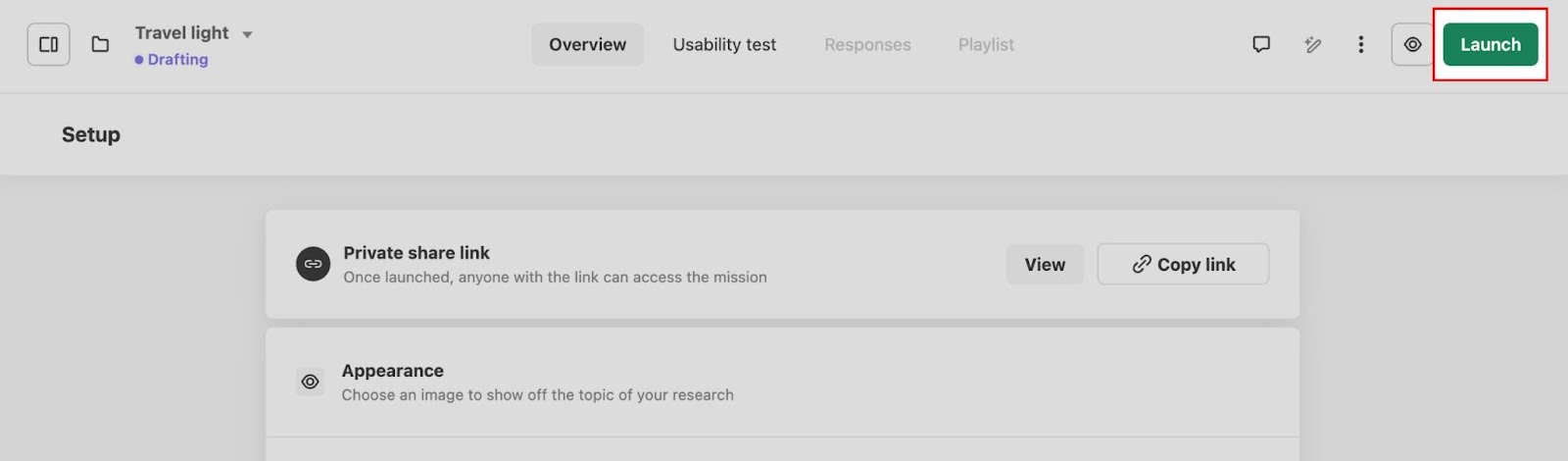
Click **Launch** in the top right corner. A study summary modal is displayed.
 {% hint style="info" %}
**Note:** If the **Launch** button is purple, you have unmet requirements. You must resolve the displayed requirements in order to launch your study.
{% endhint %}
{% endstep %}
{% step %}
(If prompted) Choose whether you want to submit your study for review or skip review and launch it. For more information, see the Pre-launch review section at the end of this article.
{% endstep %}
{% step %}
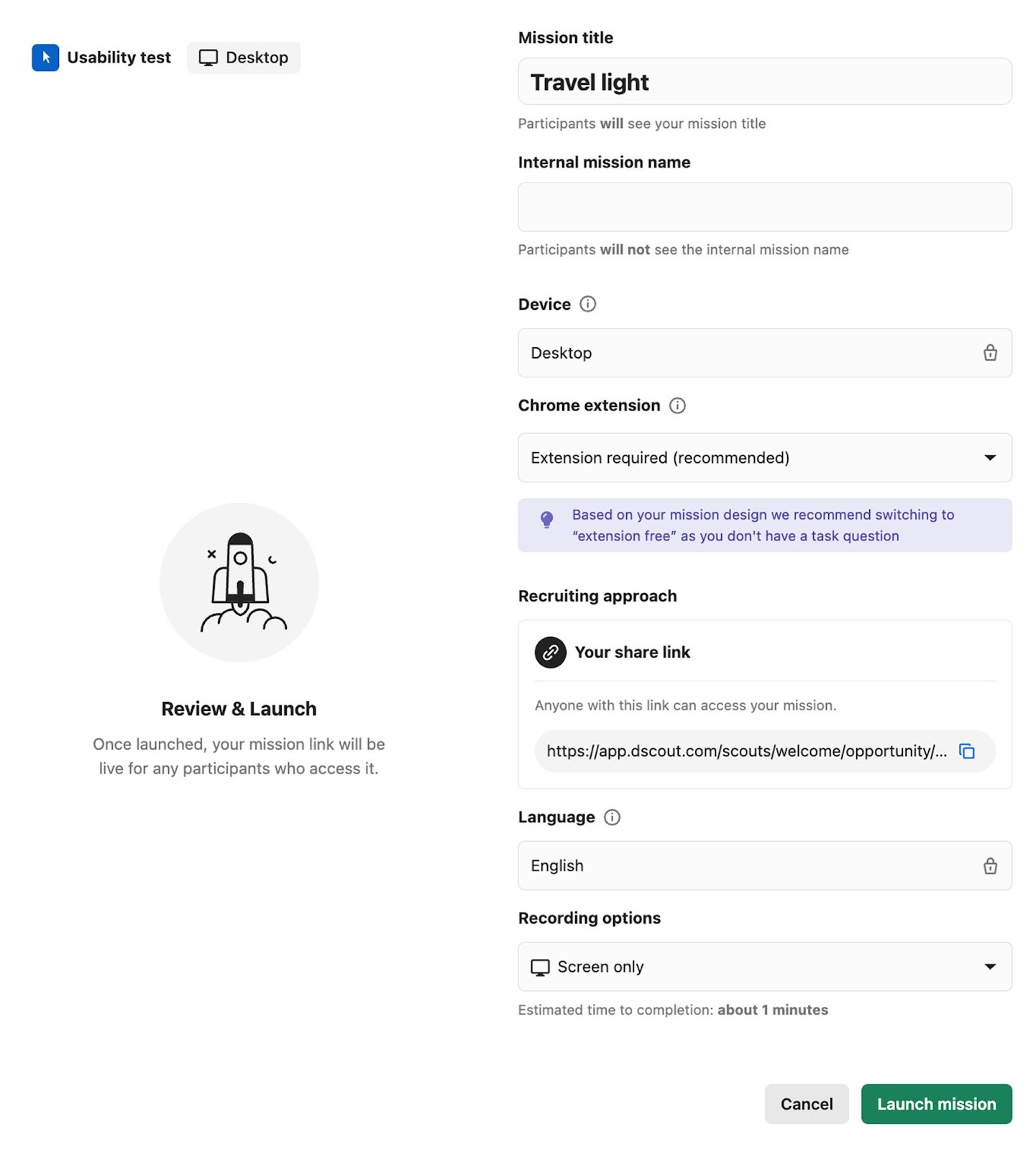
Confirm the displayed summary of your study. If anything looks off, click **Cancel** and make the necessary adjustments to your study.
{% hint style="info" %}
**Note:** If the **Launch** button is purple, you have unmet requirements. You must resolve the displayed requirements in order to launch your study.
{% endhint %}
{% endstep %}
{% step %}
(If prompted) Choose whether you want to submit your study for review or skip review and launch it. For more information, see the Pre-launch review section at the end of this article.
{% endstep %}
{% step %}
Confirm the displayed summary of your study. If anything looks off, click **Cancel** and make the necessary adjustments to your study.
 {% endstep %}
{% step %}
Click **Launch study**.
{% endstep %}
{% endstepper %}
Now, your study is launched—congrats! You’re one step closer to getting valuable insights. For information on what happens next, see the section below.
## What happens when I launch my study?
Launching your study results in slightly different behavior depending on your recruitment method:
* **Auto-recruiting participants:** Launching your study opens it to applicants in either Dscout’s Scout Panel or Partner Panels, depending on your initial selection.
* **Adding participants from screeners:** Launching your study sends an email invitation to all participants added to your study.
* **Inviting participants from Private Panels:** Launching your study sends an email invitation to all participants added to your study.
* **Inviting participants via share link:** Launching your study activates your study’s share link, making the study accessible to anyone who has the share link. You’ll find your study’s share link on the **Overview** tab of the builder.
## Pre-launch review
Some studies require a review by a Dscout Research Advisor before launch, especially for new users, lengthy studies, or studies that seem to involve PII (personally identifiable information). This helps us protect participants and also ensure easy analysis for you when your study ends.
If a review is required, you’ll be notified after clicking the **Launch** button on your study. Reviews typically take 1–2 business days, and the Research Advisor will leave their comments directly in your study. Once you’ve resolved these comments, you can proceed to launching your study.
When auto-recruiting participants, you can submit your study for review even if one isn’t required. This lets you get a second set of eyes on your study prior to launch.
{% stepper %}
{% step %}
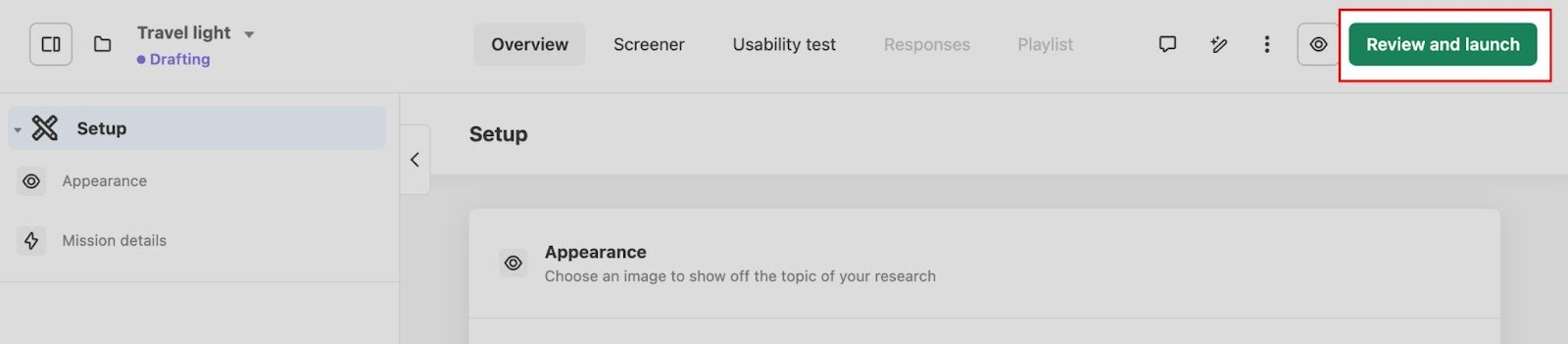
In the builder, click **Launch** in the top right corner. A review modal is displayed.
{% endstep %}
{% step %}
Click **Launch study**.
{% endstep %}
{% endstepper %}
Now, your study is launched—congrats! You’re one step closer to getting valuable insights. For information on what happens next, see the section below.
## What happens when I launch my study?
Launching your study results in slightly different behavior depending on your recruitment method:
* **Auto-recruiting participants:** Launching your study opens it to applicants in either Dscout’s Scout Panel or Partner Panels, depending on your initial selection.
* **Adding participants from screeners:** Launching your study sends an email invitation to all participants added to your study.
* **Inviting participants from Private Panels:** Launching your study sends an email invitation to all participants added to your study.
* **Inviting participants via share link:** Launching your study activates your study’s share link, making the study accessible to anyone who has the share link. You’ll find your study’s share link on the **Overview** tab of the builder.
## Pre-launch review
Some studies require a review by a Dscout Research Advisor before launch, especially for new users, lengthy studies, or studies that seem to involve PII (personally identifiable information). This helps us protect participants and also ensure easy analysis for you when your study ends.
If a review is required, you’ll be notified after clicking the **Launch** button on your study. Reviews typically take 1–2 business days, and the Research Advisor will leave their comments directly in your study. Once you’ve resolved these comments, you can proceed to launching your study.
When auto-recruiting participants, you can submit your study for review even if one isn’t required. This lets you get a second set of eyes on your study prior to launch.
{% stepper %}
{% step %}
In the builder, click **Launch** in the top right corner. A review modal is displayed.
 {% endstep %}
{% step %}
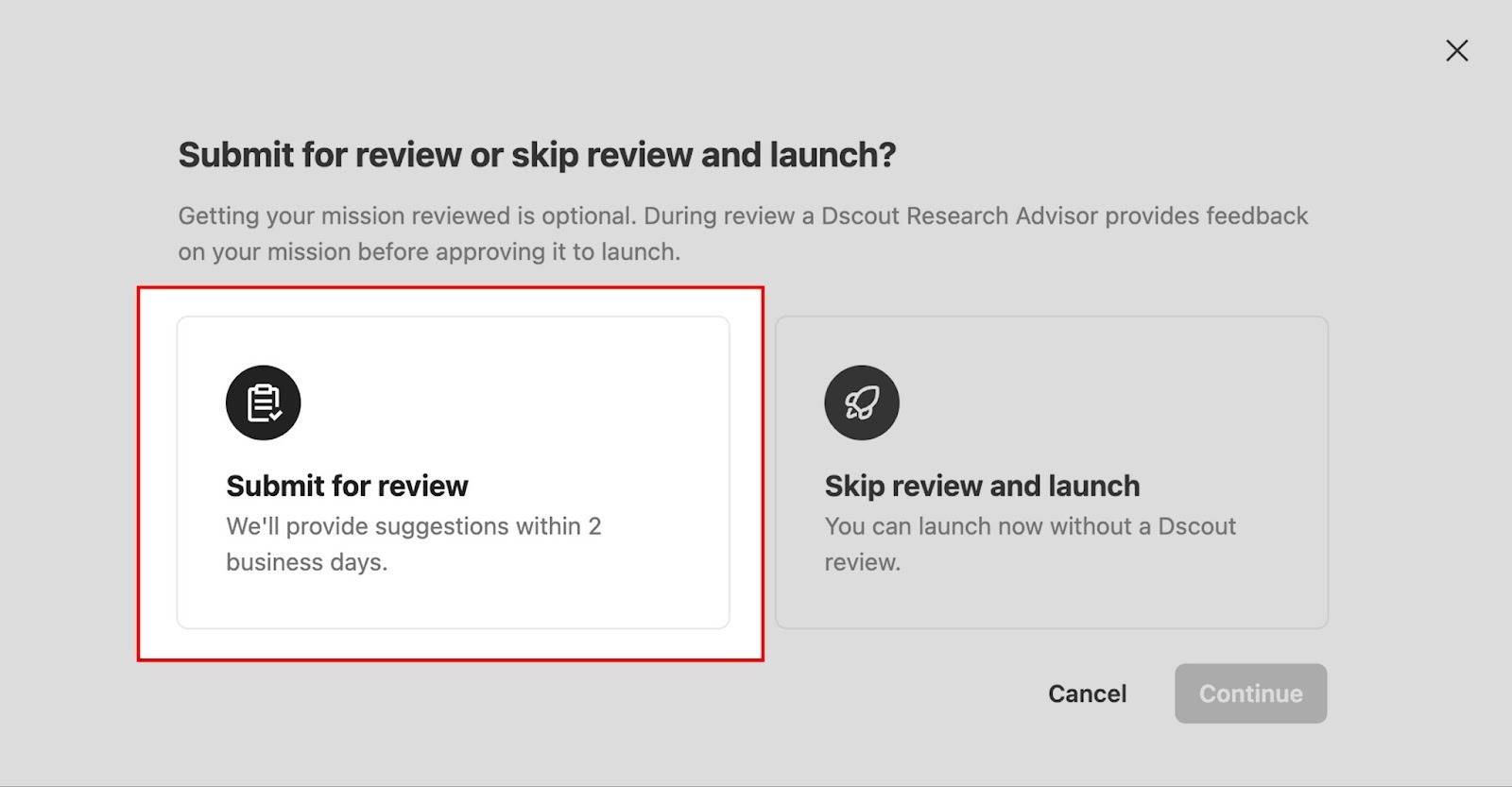
Select **Submit for review**, then click **Continue**.
{% endstep %}
{% step %}
Select **Submit for review**, then click **Continue**.
 {% endstep %}
{% step %}
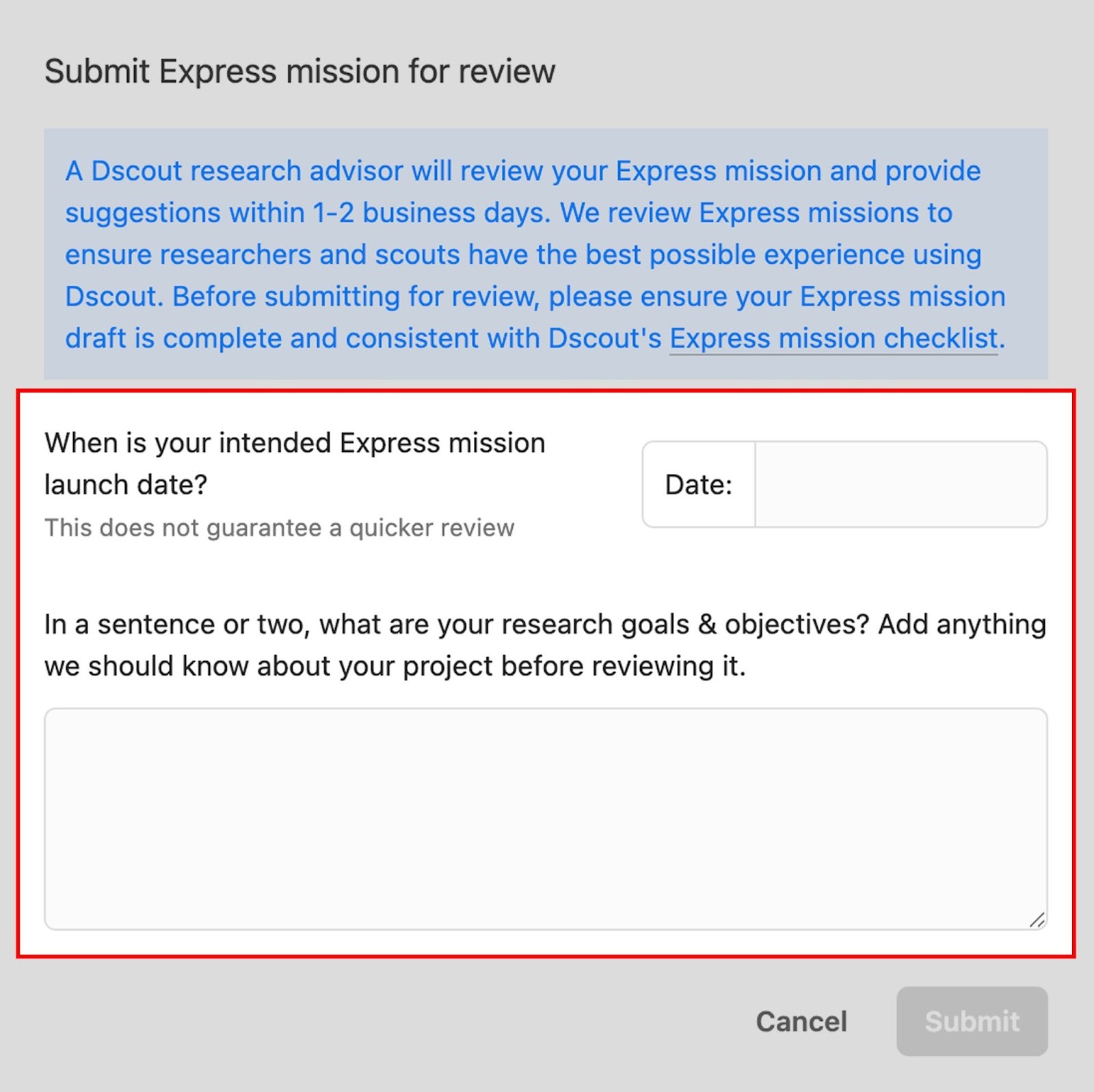
Enter your **intended launch date**. This must be at least one business day from the date you’re submitting. And keep in mind that your selection here will not guarantee a faster review.
{% endstep %}
{% step %}
Enter a sentence or two into the provided text box. Let our Research Advisors know about your project goals or anything you want specific feedback on.
{% endstep %}
{% step %}
Enter your **intended launch date**. This must be at least one business day from the date you’re submitting. And keep in mind that your selection here will not guarantee a faster review.
{% endstep %}
{% step %}
Enter a sentence or two into the provided text box. Let our Research Advisors know about your project goals or anything you want specific feedback on.
 {% endstep %}
{% step %}
Click **Submit**.
{% endstep %}
{% endstepper %}
Now, a Research Advisor will review your study in 1–2 business days and leave any comments directly on your study. Once you’ve resolved these comments, you can proceed to launching your study.
---
# Agent Instructions
This documentation is published with GitBook. GitBook is the documentation platform designed so that both humans and AI agents can read, navigate, and reason over technical content effectively. Learn more at gitbook.com.
## Querying This Documentation
If you need additional information that is not directly available in this page, you can query the documentation by asking a question.
Perform an HTTP GET request on the following URL with the `ask` and `goal` query parameters:
```
GET https://help.dscout.com/usability-tests/manage-a-usability-test/launch-a-usability-test.md?ask=&goal=
```
`ask` is the immediate question: it should be specific, self-contained, and written in natural language.
`goal` is what the user is ultimately trying to achieve, the reason they need the answer. Sharing it helps GitBook give you a better, more relevant answer. A goal is most helpful when it describes the outcome the user wants rather than restating the question. For example, with `ask=how do I create an API token`, a goal like `automate deployments from our CI pipeline` lets GitBook tailor the answer to that use case.
The response will contain a direct answer to the question and relevant excerpts and sources from the documentation.
Use this mechanism when the answer is not explicitly present in the current page, you need clarification or additional context, or you want to retrieve related documentation sections.
{% endstep %}
{% step %}
Click **Submit**.
{% endstep %}
{% endstepper %}
Now, a Research Advisor will review your study in 1–2 business days and leave any comments directly on your study. Once you’ve resolved these comments, you can proceed to launching your study.
---
# Agent Instructions
This documentation is published with GitBook. GitBook is the documentation platform designed so that both humans and AI agents can read, navigate, and reason over technical content effectively. Learn more at gitbook.com.
## Querying This Documentation
If you need additional information that is not directly available in this page, you can query the documentation by asking a question.
Perform an HTTP GET request on the following URL with the `ask` and `goal` query parameters:
```
GET https://help.dscout.com/usability-tests/manage-a-usability-test/launch-a-usability-test.md?ask=&goal=
```
`ask` is the immediate question: it should be specific, self-contained, and written in natural language.
`goal` is what the user is ultimately trying to achieve, the reason they need the answer. Sharing it helps GitBook give you a better, more relevant answer. A goal is most helpful when it describes the outcome the user wants rather than restating the question. For example, with `ask=how do I create an API token`, a goal like `automate deployments from our CI pipeline` lets GitBook tailor the answer to that use case.
The response will contain a direct answer to the question and relevant excerpts and sources from the documentation.
Use this mechanism when the answer is not explicitly present in the current page, you need clarification or additional context, or you want to retrieve related documentation sections.